We've added custom content page layouts to give you better readability and control over how on-page navigation elements are displayed. Choose the layout that works best for your content and readers.
What's New?
The new pageMode configuration offers three layout options designed to optimise readability for different content types and reading preferences.
Choose Your Layout
- default: The familiar three-column layout with content in the centre and Table of Contents in the right sidebar.
- wide: Expands content for easier reading while keeping the ToC accessible as a floating panel. Perfect for technical documentation where you need both spacious layouts and quick navigation.
- custom: Maximises content space by hiding the ToC entirely, creating a distraction-free reading environment. Ideal for narrative content, tutorials, and long-form documentation.
- Default
- Wide
- Custom
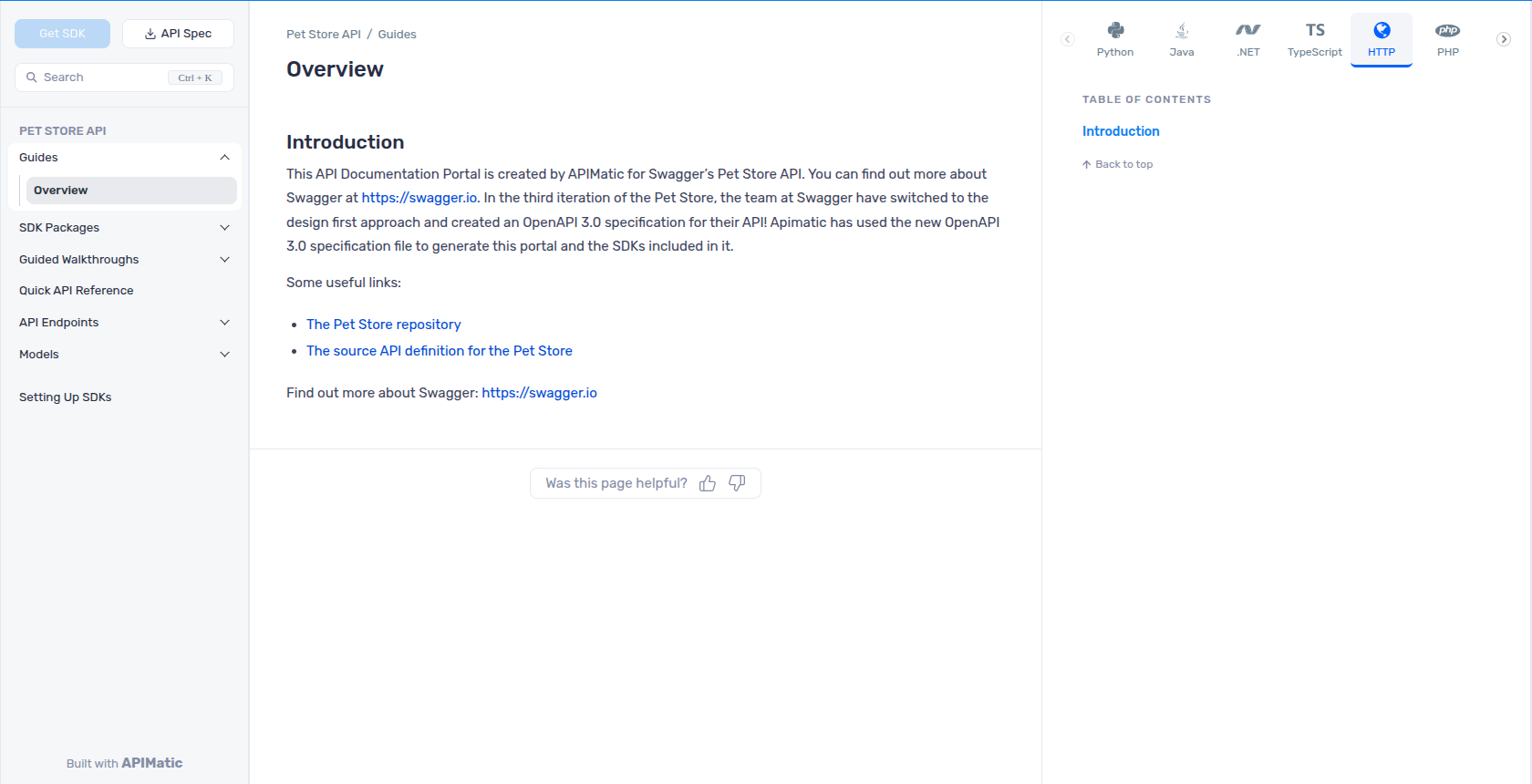
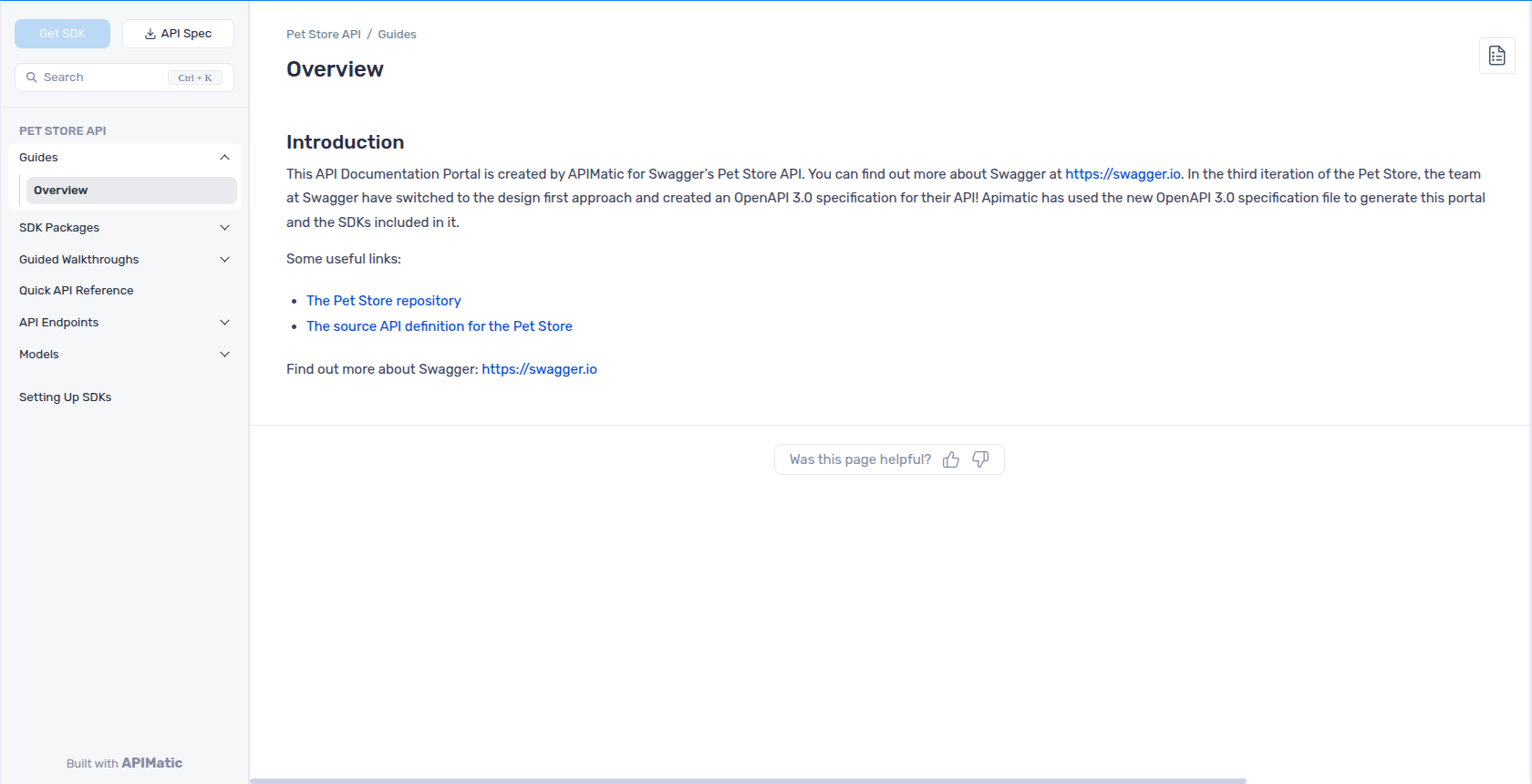
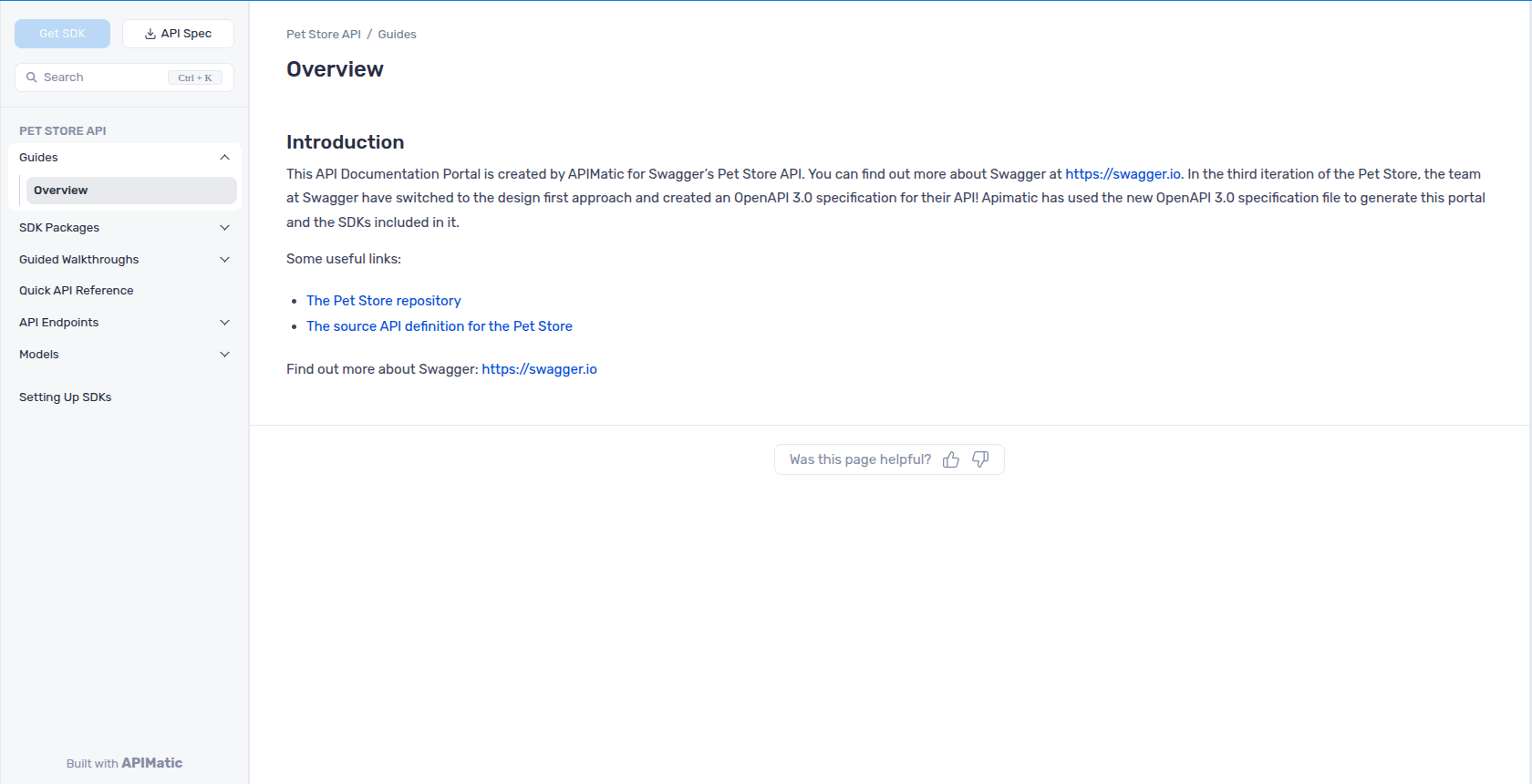
This feature is only supported for portals generated via Docs as Code. When pageMode is not specified, the default layout is used.
Configuration
Set Portal-Wide Defaults
Configure the default layout for your entire portal using globalPageMetaData.
{
  "generatePortal": {
    "portalSettings": {
      "globalPageMetaData": {
        "pageMode": "default" // Options: default, wide, custom
      }
    }
  }
}
See globalPageMetaData documentation for details.
Customise Individual Pages
Override the portal default for specific pages using frontmatter.
---
pageMode: wide
---
This flexibility lets you tailor the reading experience to each page's content and purpose. See the pageMode documentation for more details.
- Must be the very first block in the file (no preceding content or whitespace)
- Opening and closing
---fences must be on their own lines with no indentation