We've moved the API playground and code samples into a drawer interface that opens on demand. This reduces clutter on endpoint pages, particularly for endpoints with deeply nested fields, and keeps documentation visible while developers explore your API.
The updated UI will appear automatically on your next publish. Existing published portals will continue using the current layout until republished.
What Changed
From inline to drawer
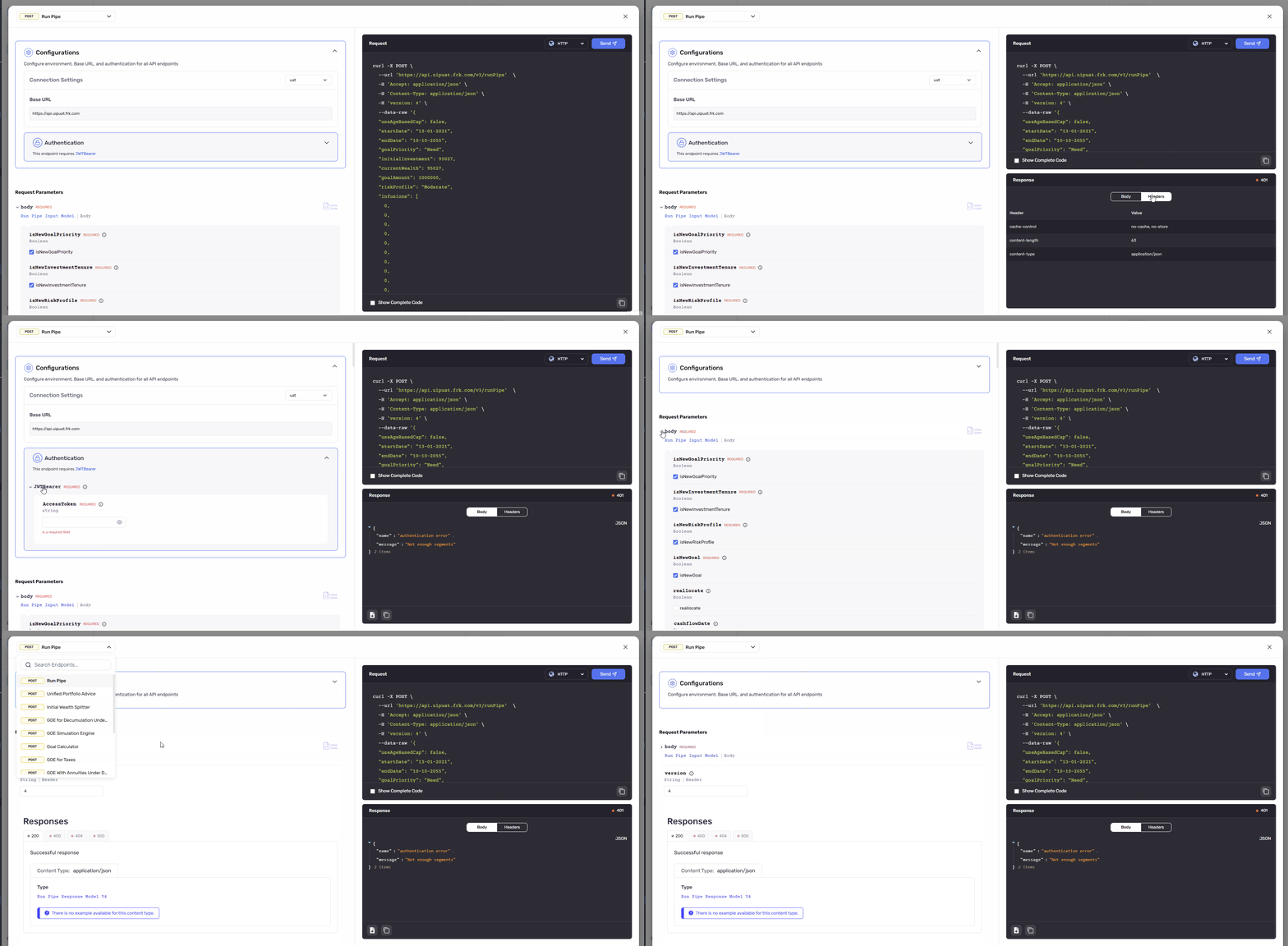
The API playground, code samples, and authentication have moved from the main page into a drawer that opens when you click Try It. This keeps endpoint documentation visible and reduces scrolling on complex pages.
What's in the drawer
- API playground with request parameters
- Code samples with language selector
- Authentication configuration
- Endpoint switcher for navigation
- Response tab (appears after execution)
- Response examples
What stayed on the page
Endpoint documentation and response examples remain visible in the main content area.
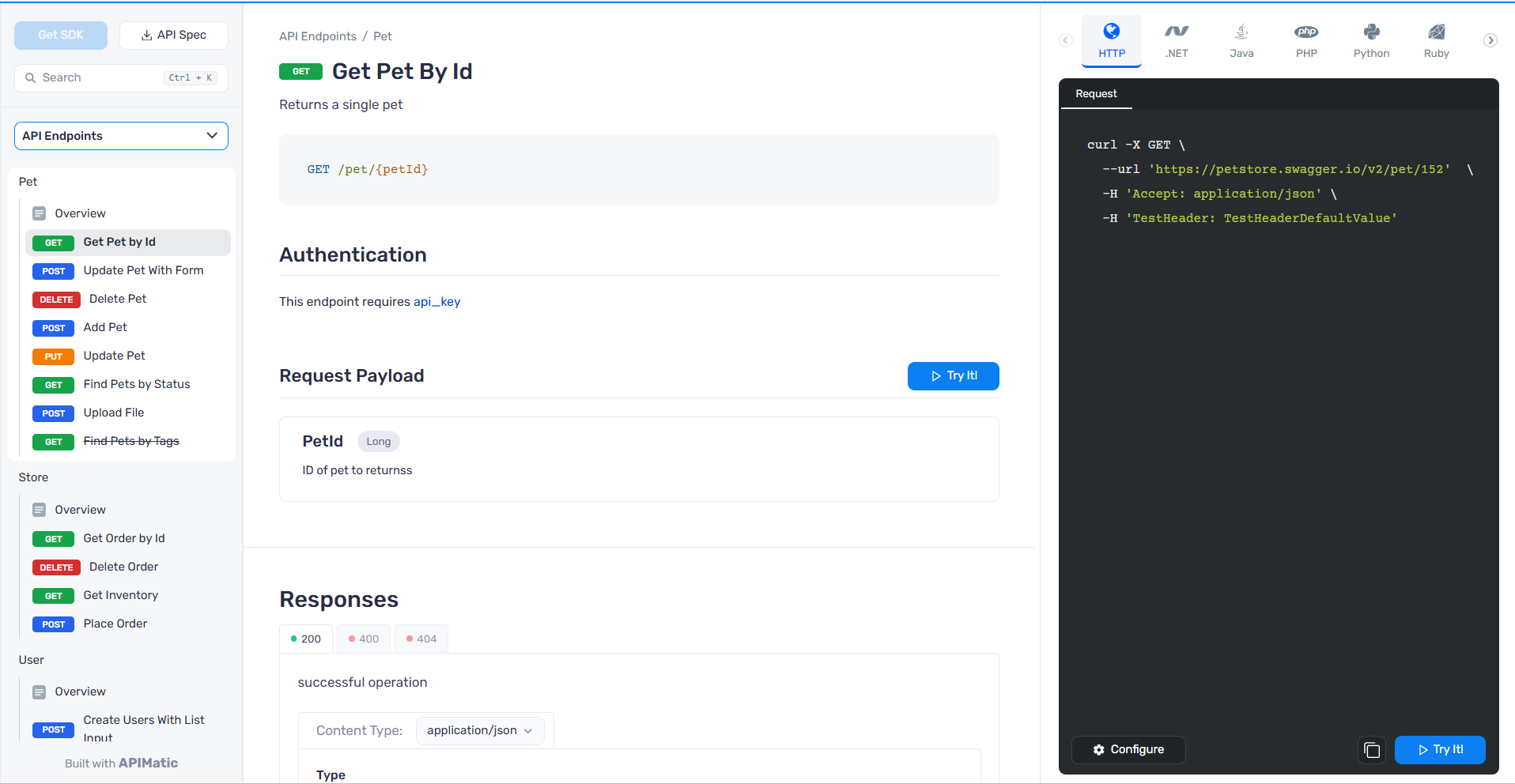
Using the Legacy API Playground
The new drawer-based API playground is enabled by default. If you prefer to keep the previous inline experience, you can opt out using the following methods:
1. Docs as Code Users
If you manage your portal using Docs as Code, set this flag in your portal settings:
{
  useLegacyApiPlayground: true;
}
For full configuration details, see the API Playground configuration reference.
2. Hosted Portal Users
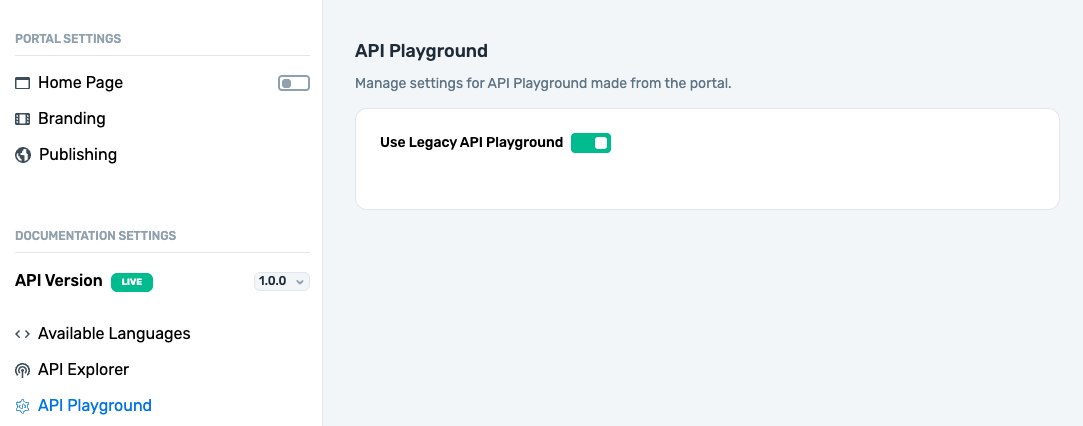
If you're using a Hosted portal, enable the legacy mode from the Portal Editor:
- Open the Portal Editor
- Navigate to API Playground settings
- Toggle Use Legacy API Playground to On
- Publish your portal