We've made API Copilot a first-class part of your portal. It has moved out of a floating overlay and into a dedicated panel beside your docs, and it's now reachable from more places than ever. On top of that, your portal can now open directly into it: with the new API Copilot Home (Beta), developers land in a conversation and start integrating by asking a question instead of browsing the docs for where to begin.
API Copilot UX Improvements
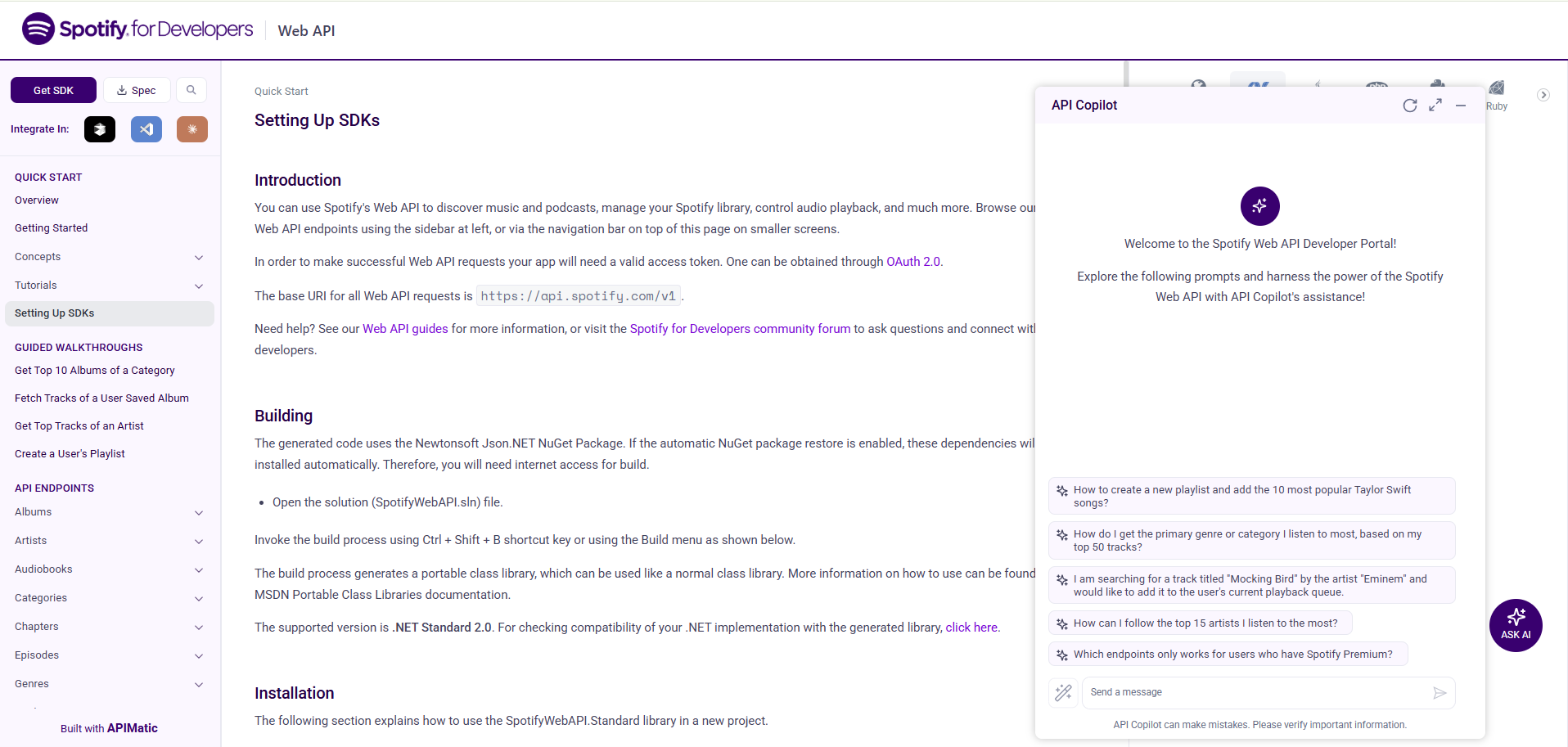
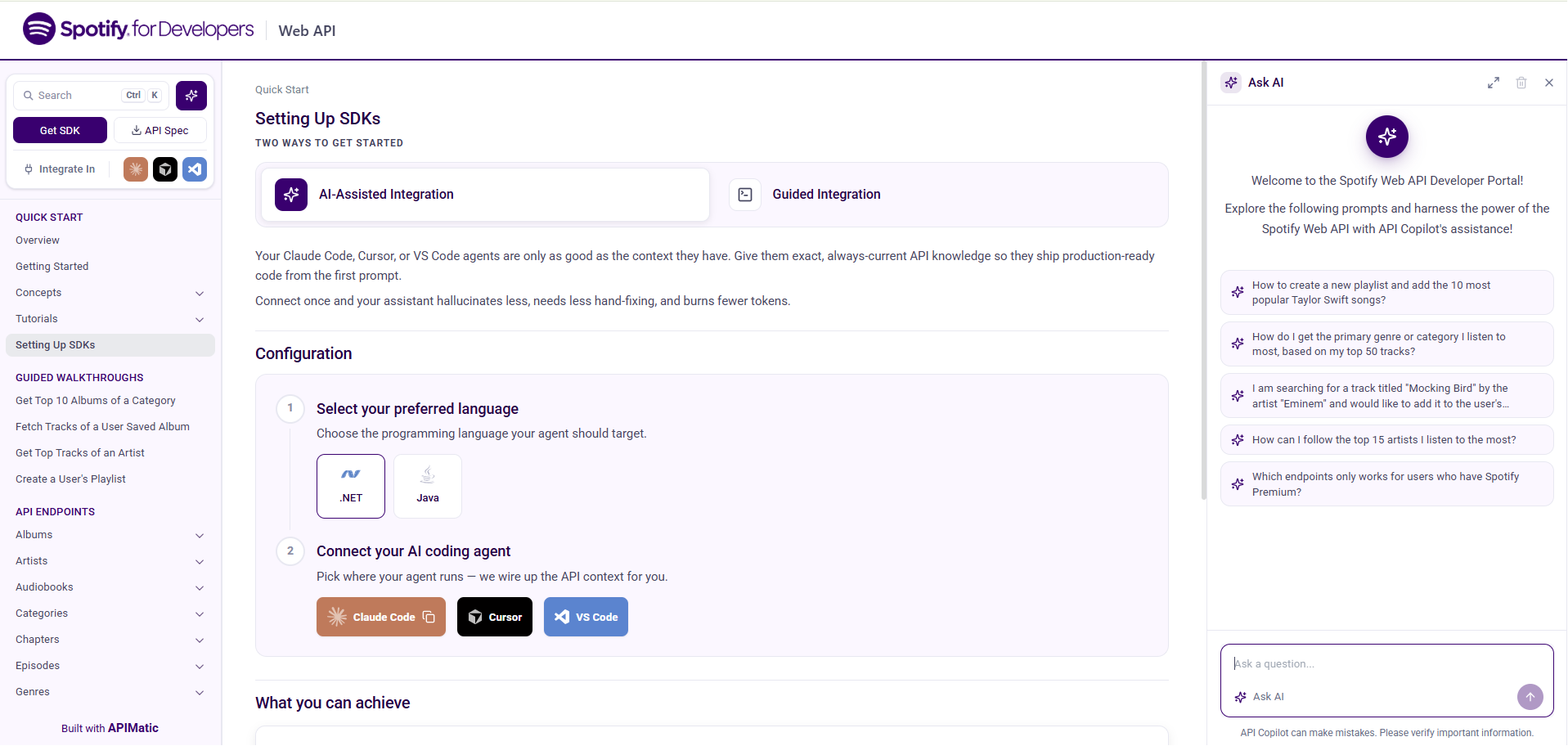
Previously, API Copilot opened as a floating panel that sat on top of the documentation, covering the content while the conversation was open. We've moved it into a dedicated panel alongside the docs, so developers can read an endpoint and ask about it side by side without losing their place.
- Before
- After
More Ways to Open It
We've added several entry points so developers can reach API Copilot from wherever they already are:
- Sparkle icon in the navbar: a sparkle icon now sits next to the search input. Clicking it opens API Copilot instantly.
- Quick Prompt input field: a Quick Prompt input always sits in the center of the main content area. Type a question into it and API Copilot opens with that question already in flight.
- From Search: when API Copilot is enabled and a developer types in the search modal, an Ask Assistant option appears alongside the results; selecting it hands the query straight to API Copilot.
- Keyboard shortcut: press Ctrl + I on Windows or ⌘ + I on macOS to open and close API Copilot at any time.
The API Copilot UX improvements will be automatically applied the next time your portal is published.
API Copilot Home (Beta)
A portal can now use API Copilot as its landing page. Instead of arriving at a static overview, developers are greeted by API Copilot's welcome message and assistive prompts and can begin integrating immediately, while the rest of the documentation stays one click away in the navigation.
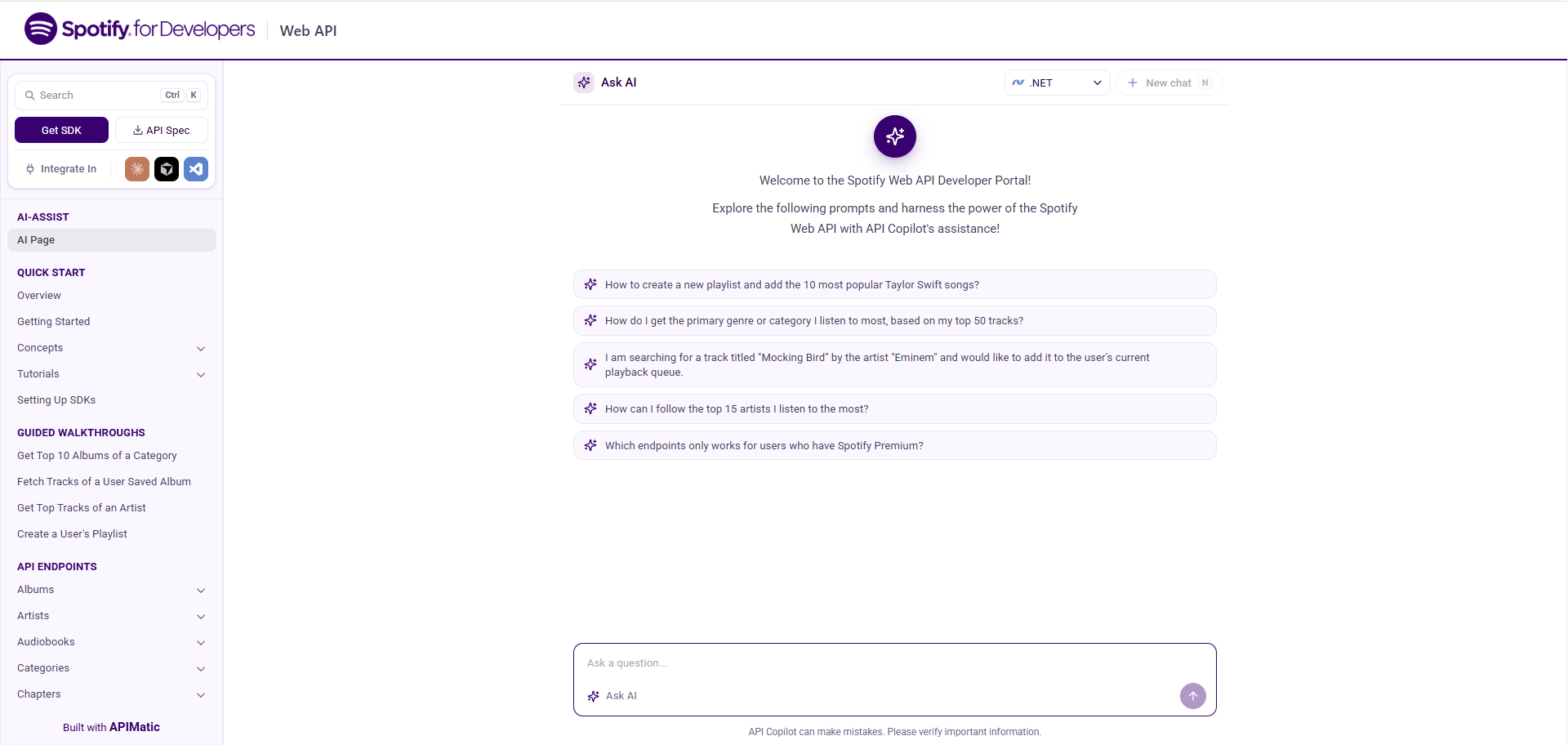
This is a good fit for portals where developers usually arrive with a goal in mind rather than a section to read. It shortens the path from landing on the portal to writing working code.
Enabling It
API Copilot Home is opt-in and set up through the Docs as Code workflow. It requires API Copilot to already be enabled for your portal. In short: add a non-empty ai-assist.md file to your build file's content folder and reference it as a page in your toc.yaml. For the full configuration, see API Copilot Home.