
Validate an API Workspace
Find, understand, and report validation issues in your API definition with APIMatic for VS Code.
Once your API workspace is set up along with an API definition, you can start validating it. The extension offers multiple dedicated views to help you get the information you need as efficiently as possible.
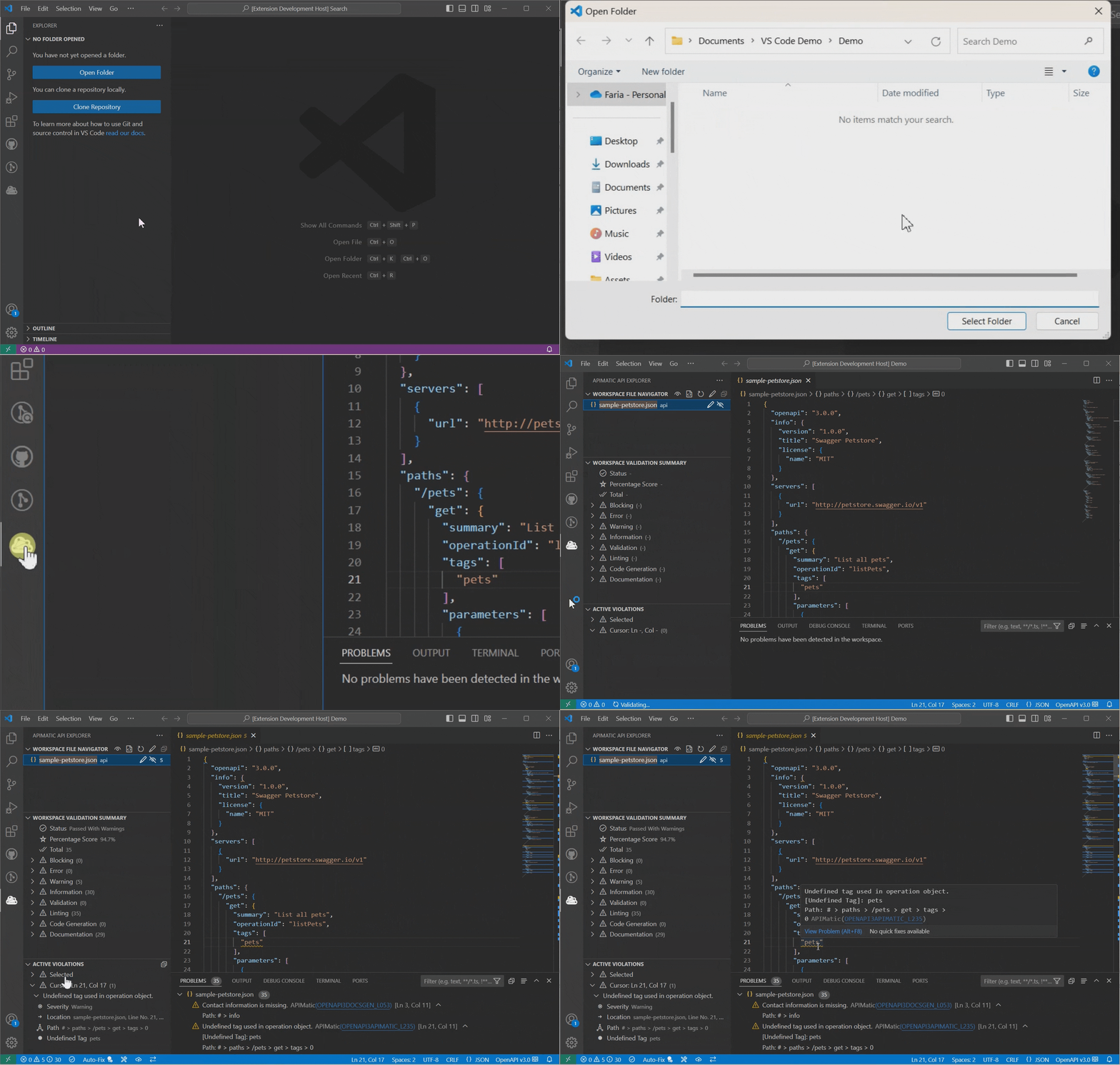
The documentation covers the following topics:
- Triggering the Validation
- Validation Messages in the Problems View
- Validation Messages in the Active File Editor
- Obtaining a Workspace Validation Summary
- Finding Additional Information for a Validation Issue
- Configuring Maximum Validation Messages Limit
Start a validation
The validation process triggers automatically with the following events:
- When the API workspace is loaded at startup.
- When a new API workspace is loaded after the workspace folder changes.
- When a user saves a file present in the API workspace.
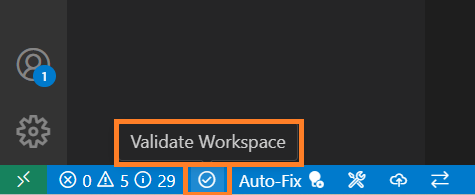
In case of any trouble, the validation can also be manually triggered using the status bar button. Note, however, that the validation only works on saved files and any unsaved changes aren't considered:
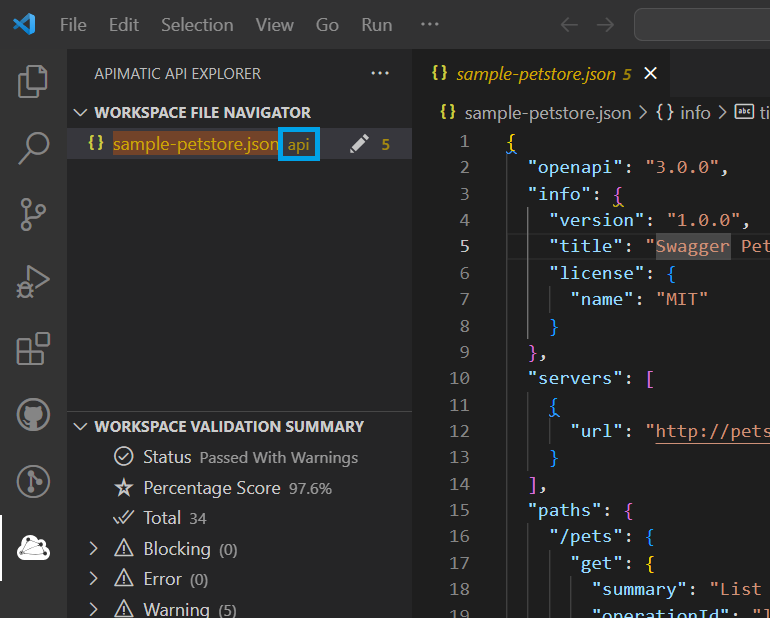
For validation triggering to work as expected, it's important that your API workspace contains a main entry file in one of the supported specification formats with all relevant identification metadata available, for example, OpenAPI v3.1 files must contain a root level openapi property with value set as 3.1.0. The extension automatically detects the main entry file based on this identification metadata, highlights its name and labels the detected file with a small api keyword next to the file name in the Workspace File Navigator view:
If you don't see this label in front of any of your files, and your workspace contains multiple directories it's possible that your file is hidden from view. To reveal the main file in such cases, you can use the reveal feature. Hover near the Workspace File Navigator view title and select the Reveal All Main API Files option:
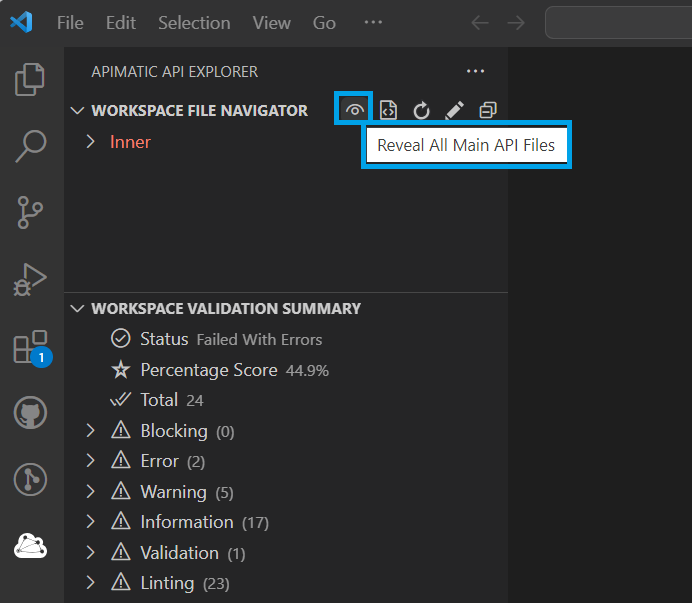
This will expand all directories and highlight any files labelled as api .
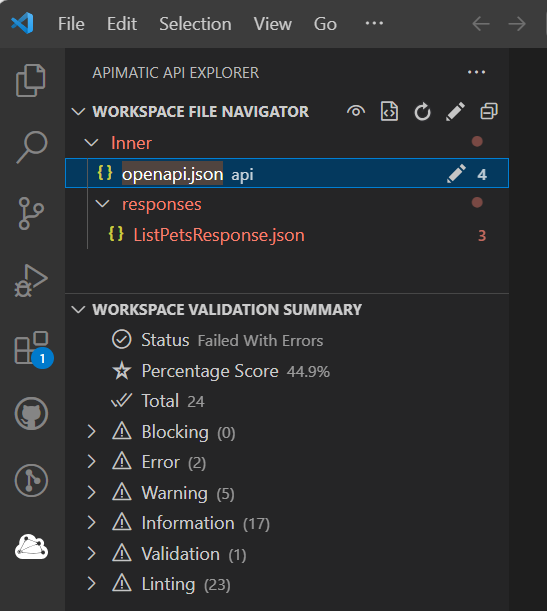
If you are still unable to find a file with the api label, it's likely that your main entry file lacks the identification data APIMatic requires.
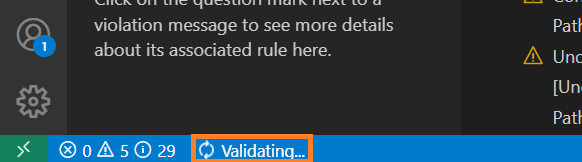
Once the main file is detected, you should see the validation process being triggered as expected. The validation process will run in the background. While the validation is running, you should see a Validating... message in the status bar:
Validation messages in the Problems view
Once the validation completes, you should see one or more validation logs in the VS Code Problems view if any issue is found in your API definition:
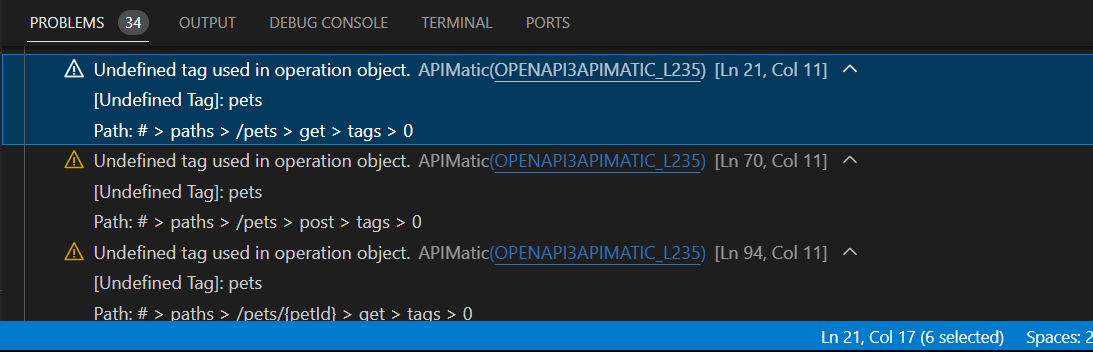
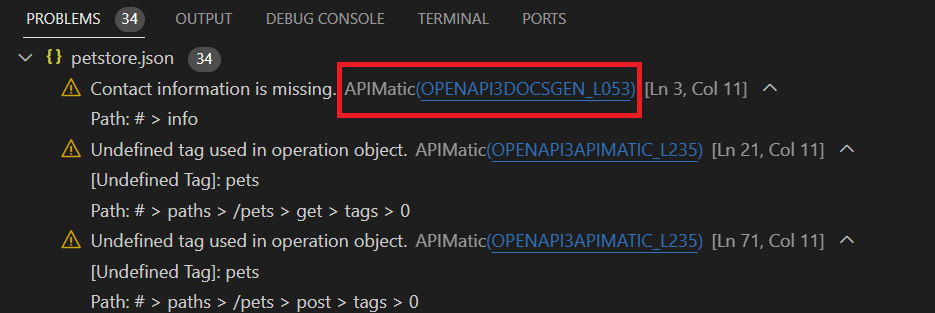
The validation log will be shown with the appropriate severity level and contain the source name (APIMatic), issue message, line/path information as well as any contextual data related to the issue in the form of key-value pairs, for example, in the above screenshot the name of the unused tag is shown in a key-value form with key set as Undefined Tag. The validation message will also list the issue code (OPENAPI3APIMATIC_L235) which can be used to view more details about it in the Learn More view.
Validation messages in the active editor
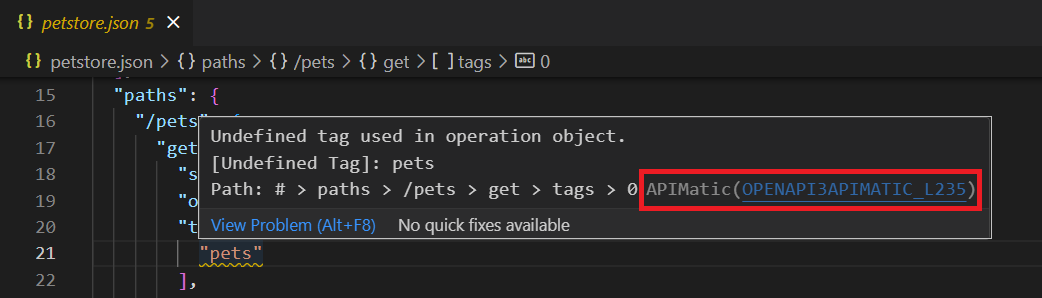
If you currently have a workspace file open in the Editor with validation issues, those issues will be highlighted in the editor at a specific line and position with appropriate squiggles based on severity of messages. Hovering over a squiggly will provide you further information about the issue, for example, the source (APIMatic), issue message, line/path information as well as any contextual data related to the issue in the form of key-value pairs, for example, in the screenshot below the name of the unused tag is shown in a key-value form with key set as Undefined Tag. The hover message will also list the issue code (OPENAPI3APIMATIC_L235) which can be used to view more details about it in the Learn More view.
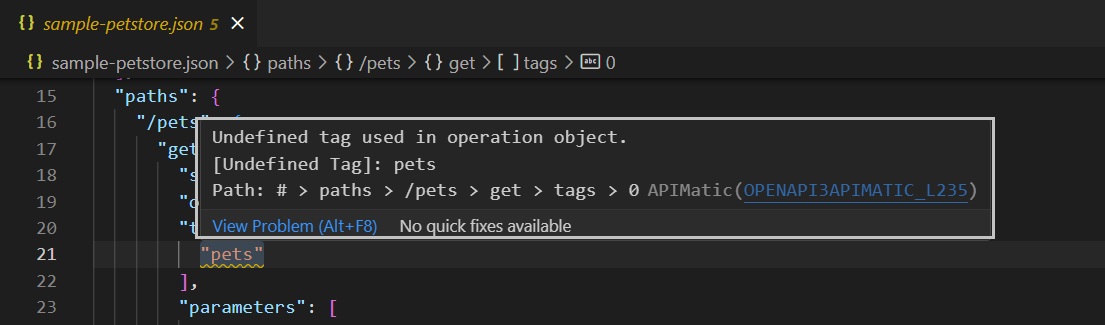
In some cases, the hover message may also show information about components referencing the current component using $ref:
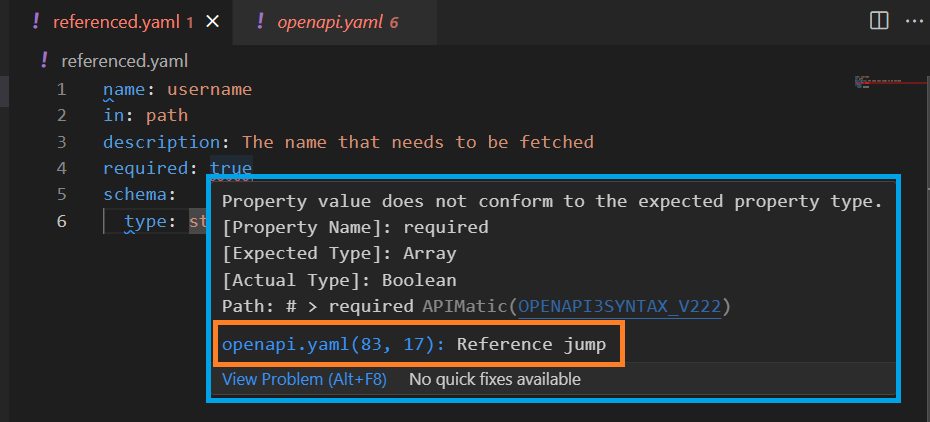
For more about this feature, see Violation call trees.
Issues at the cursor position
The amount of information that can be provided for an issue in the hover message is limited. Therefore, the dedicated view named Active Violations can be used to view complete set of issues/violations and their details, based on where your current cursor position is in the active editor.
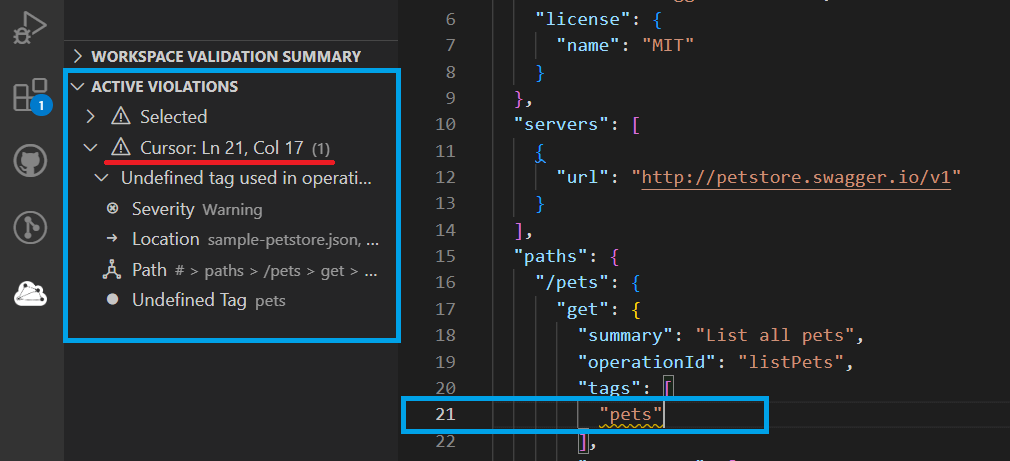
The details of a particular violation can include the following:
- Message associated with the issue.
- Severity of the issue.
- Key-value pairs contextual data (if any) associated with the issue.
- Location, for example, line/path information for the issue.
- Reference call tree to help trace origin of issue when the current component containing the issue is referenced by one or more components.
Get a workspace validation summary
To get an overall summary of all validation issues found in the complete API workspace, you can use the dedicated Workspace Validation Summary view. This view offers intelligent grouping of the issues to help you tackle problems efficiently as well as gives you an overall score of your workspace which can help roughly predict the quality of output you can hope to get in any API tool (including APIMatic) with your current API definition:
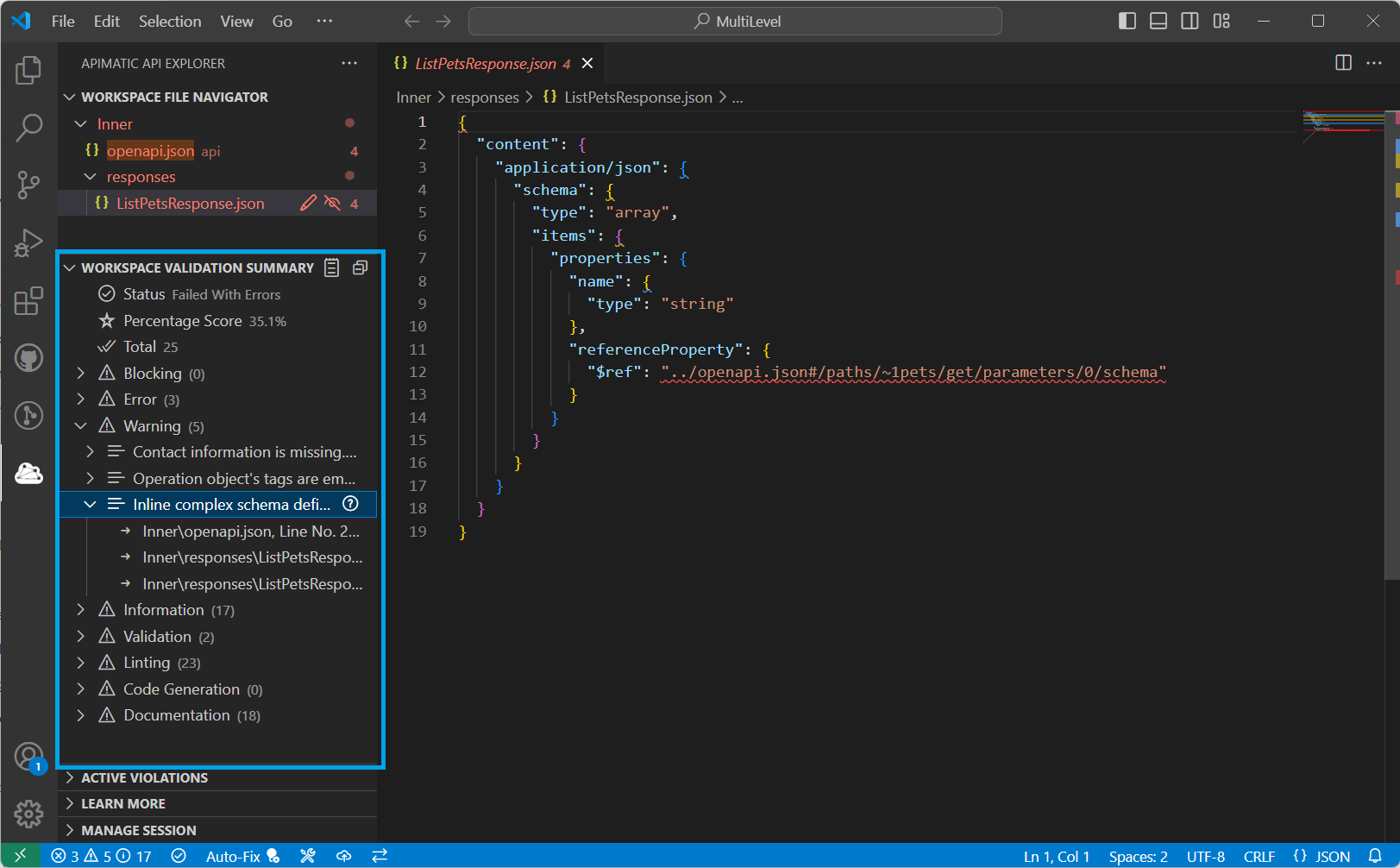
As can be seen in the screenshot, the issues in this view are grouped into various meaningful categories based on their severity, whether they're validation or linting messages or whether they affect code generation or documentation generation. Within these groups, the issue instances are further grouped on the basis of the issue message. Therefore, you can easily select a particular issue based on its severity and then be able to navigate through all of its instances across the whole workspace as well. Similarly, if you want to resolve validation issues before moving on to linting issues, you can do that easily as well.
Generate validation reports
To share the validation summary of your API definition with external stakeholders, generate a validation report in one of the supported formats. Hover near the Workspace Validation Summary view title and you should see a Generate Audit Report(s) button near the top right corner. Select it:
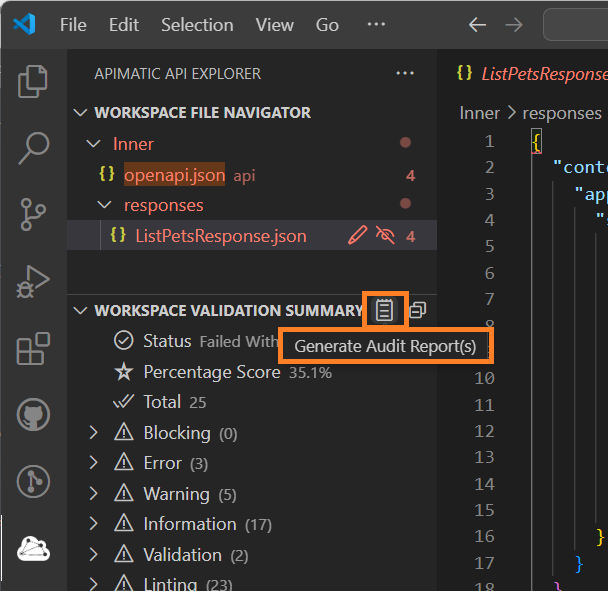
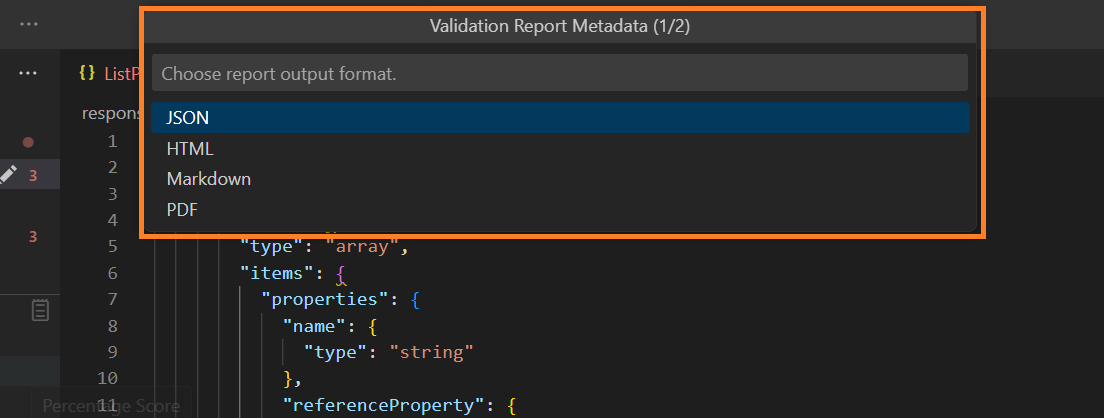
Select the desired output format of the report (JSON/HTML/Markdown/PDF):
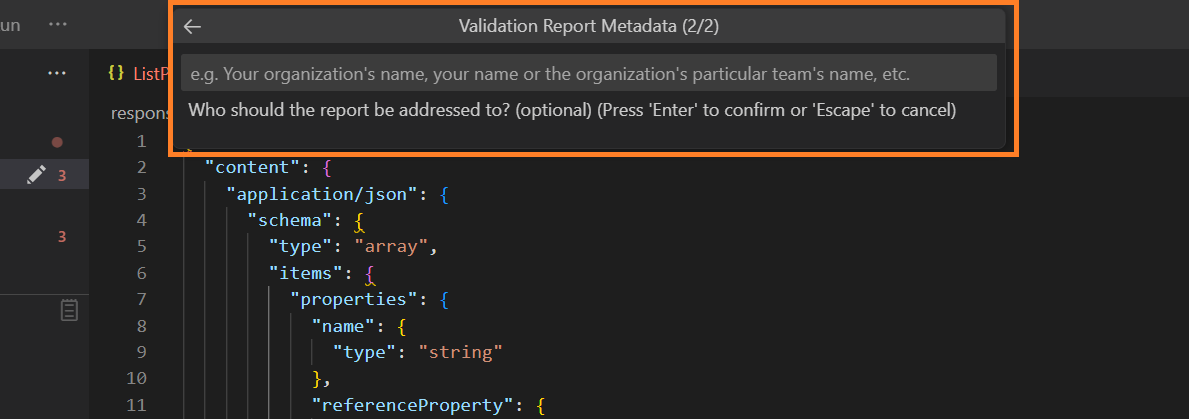
Next, you can optionally provide the name of the individual or organization to whom you intend to address the report:
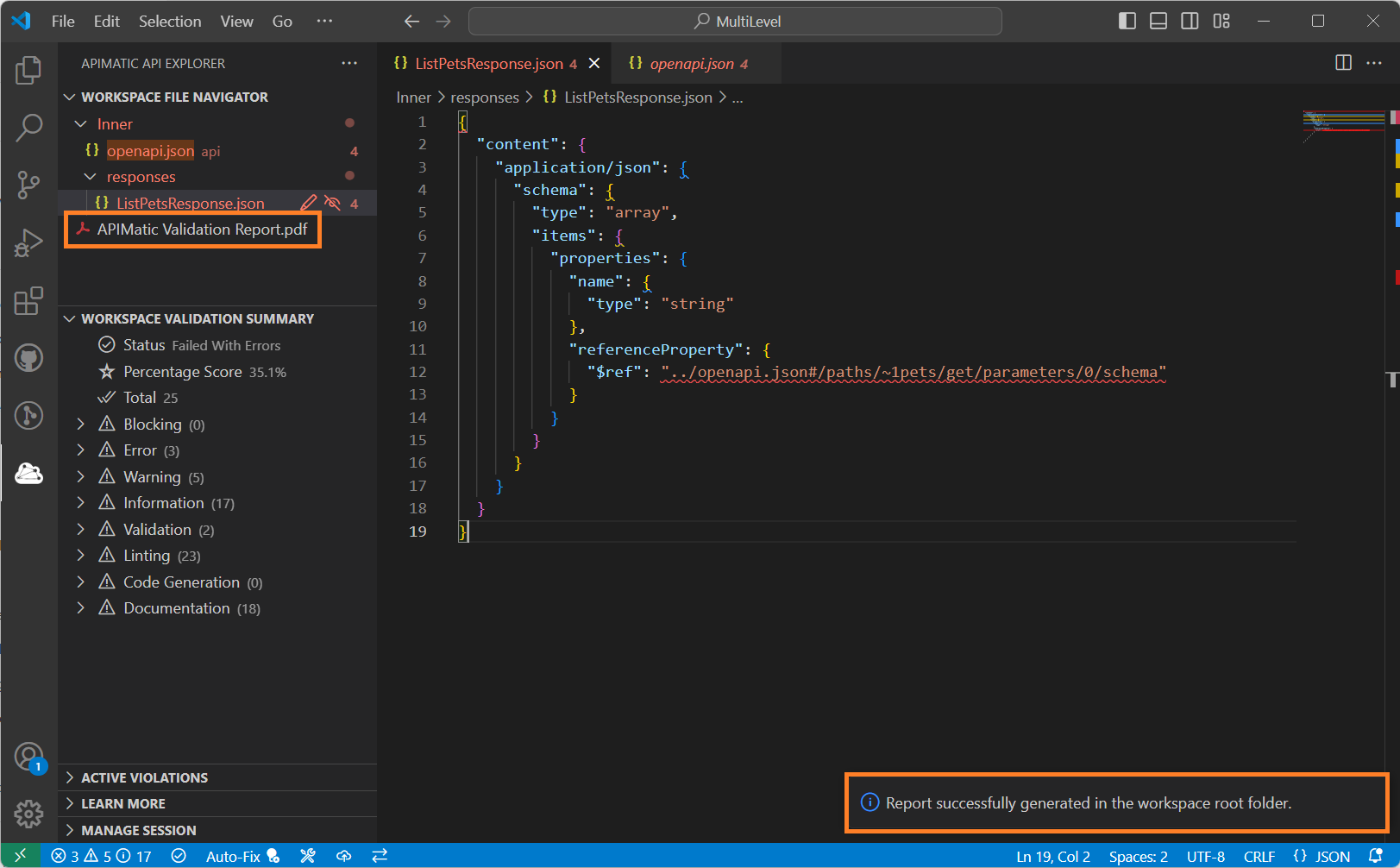
Once the information collection is completed, the generated report will be downloaded into the root folder of your API workspace:
Here is a preview of a sample report generated with this option:
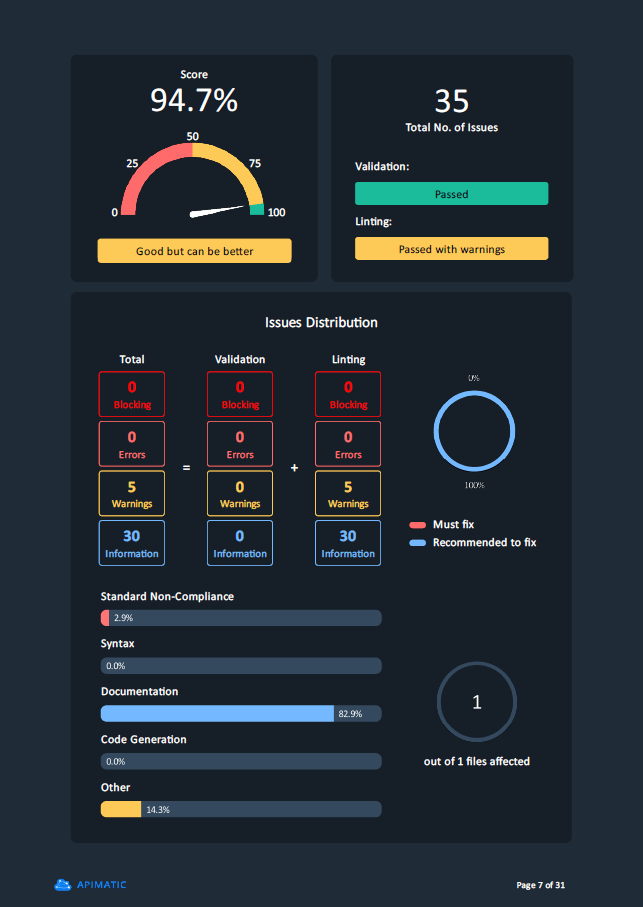
Note, that if multiple APIs are involved in the workspace or the workspace has also been built for APIMatic using the Build option, multiple reports may be generated in the form of a ZIP file.
Find more information about a validation issue
There are several alternative ways available to access more details for a validation issue, for example, hints, external documentation, and links. These include:
-
Select
(?)next to an issue message in either the Active Violations or Workspace Validation Summary views: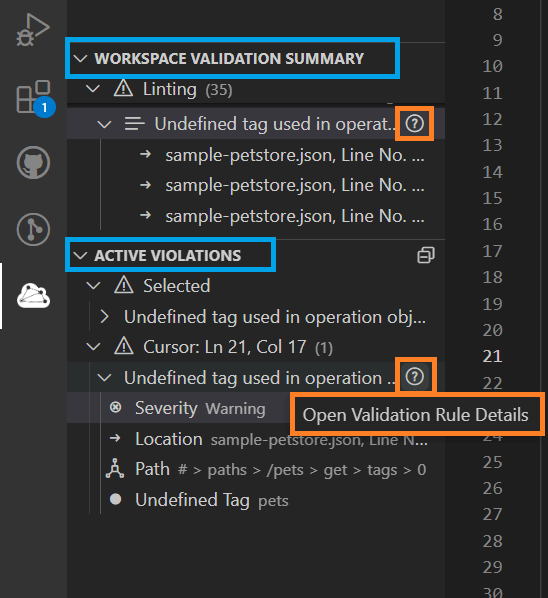
-
OR select the message code in the Problems view:
-
OR hover over a problem in the Editor and select the message code:
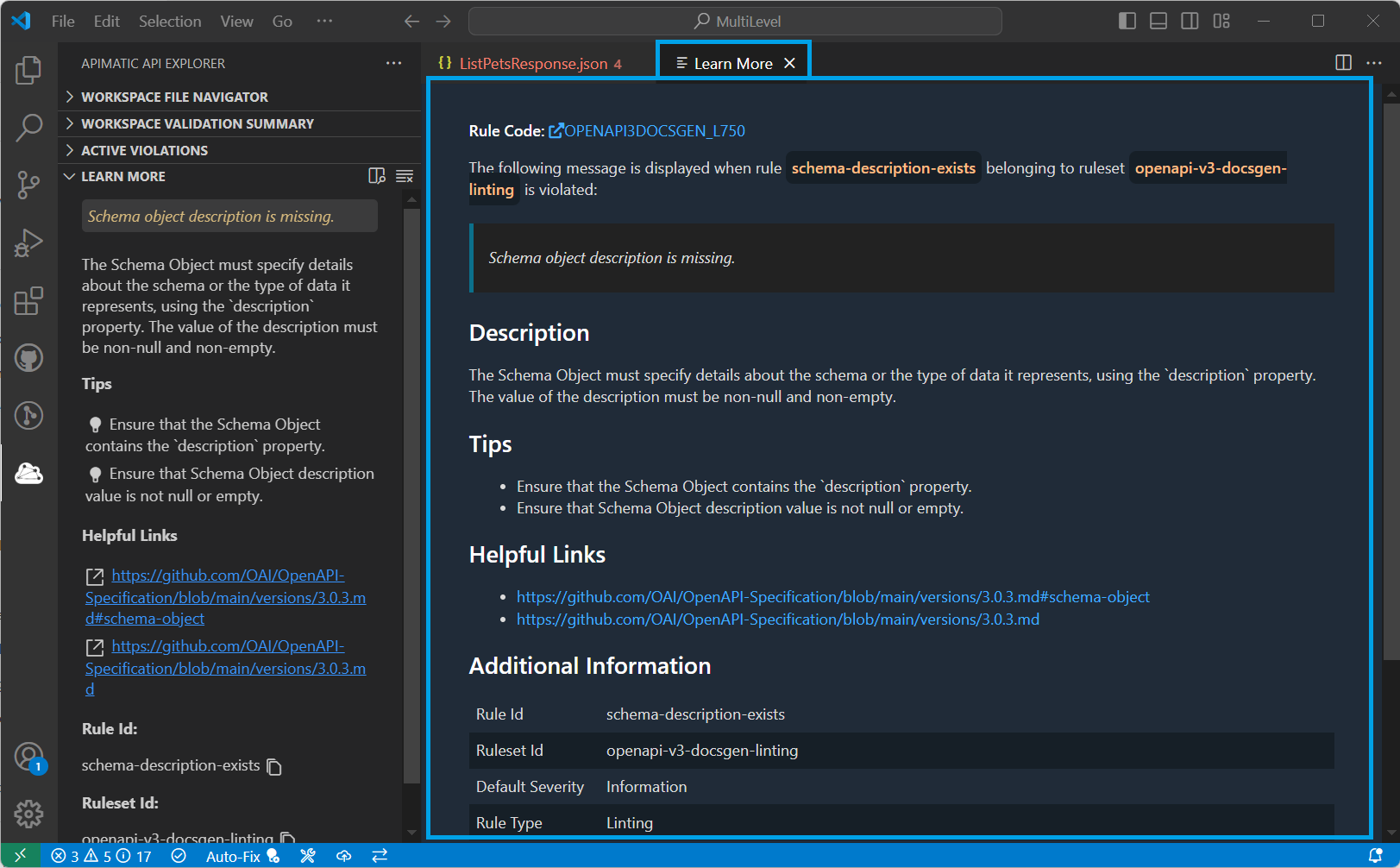
Doing any of the above actions will open up the Learn More view with all relevant details associated with the issue:
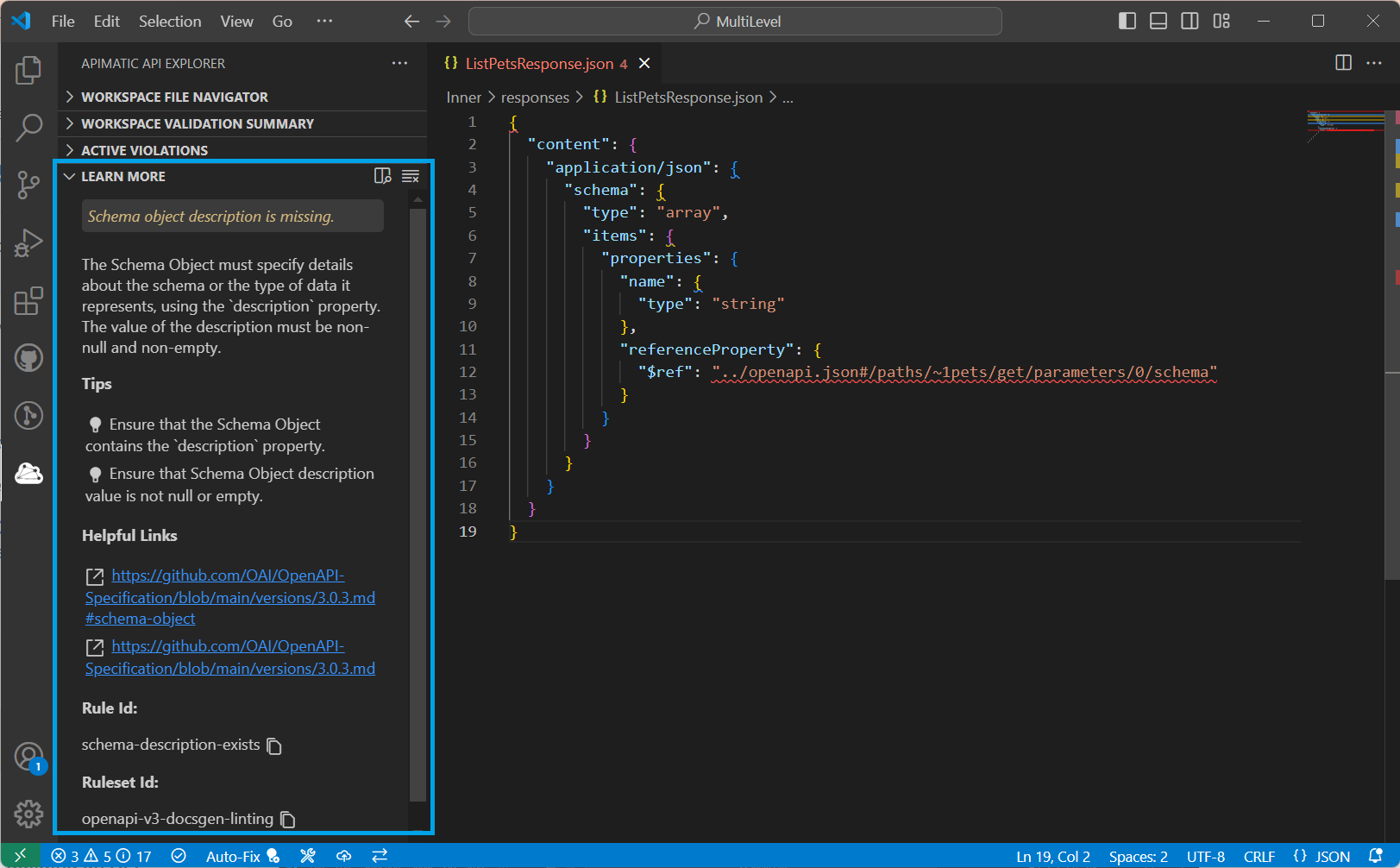
This view can be expanded further to explore details more easily:
Configure validation
You can choose which linting rulesets and rules run, and at what severity, with a validation configuration in the APIMatic Metadata file. The extension can add a metadata file with a default validation configuration for you:
-
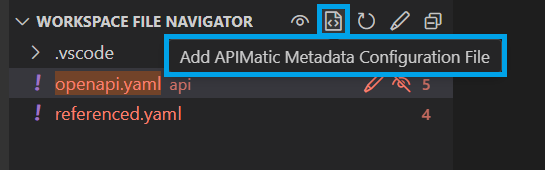
Hover near the Workspace File Navigator view title and select the Add APIMatic Metadata Configuration File option:
-
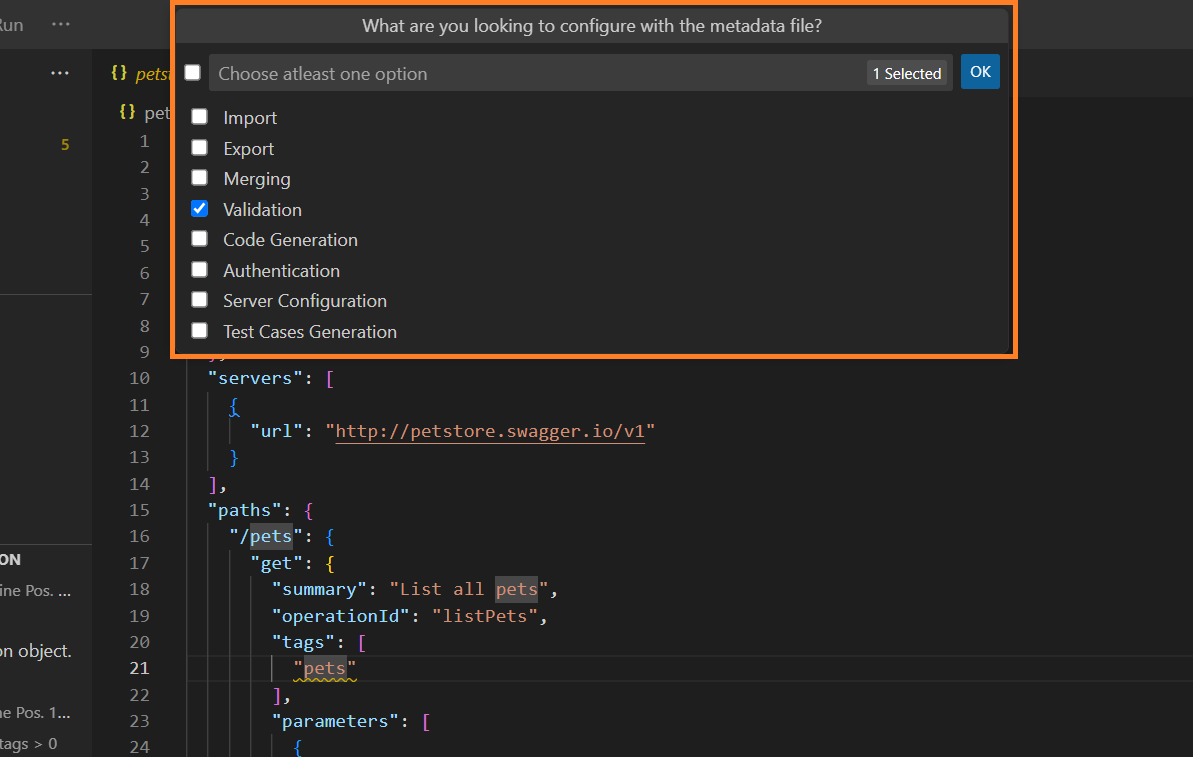
Select Validation from the list and select OK:
-
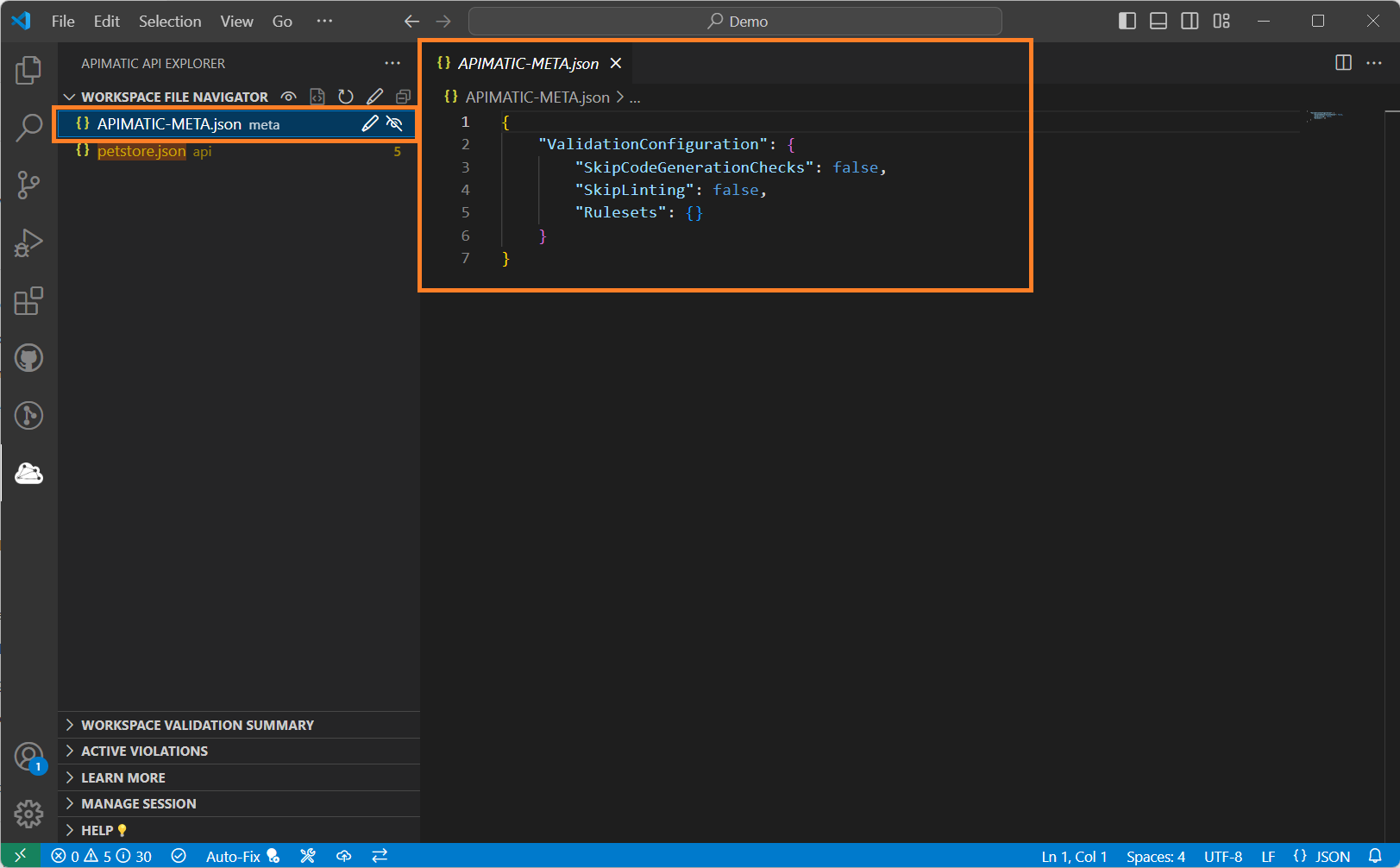
An APIMatic Metadata file with a default validation configuration is added to your workspace:
To find the ID or code of a rule or ruleset you want to configure, open it in the Learn More view.
Merge-aware validation
APIMatic can merge several API definitions into one. For a merge to succeed, each definition must be valid and build on its own, and the merged result must be valid and build too.
The extension validates all of these at once, and every validation view shows the results for all the definitions involved. For faster, clearer results, validate and build one definition at a time first by opening only that definition's folder as your API workspace. When each one passes, open the root folder, which holds every definition's folder and the metadata file that starts the merge, and build it to check the merge.
Set the maximum number of validation messages
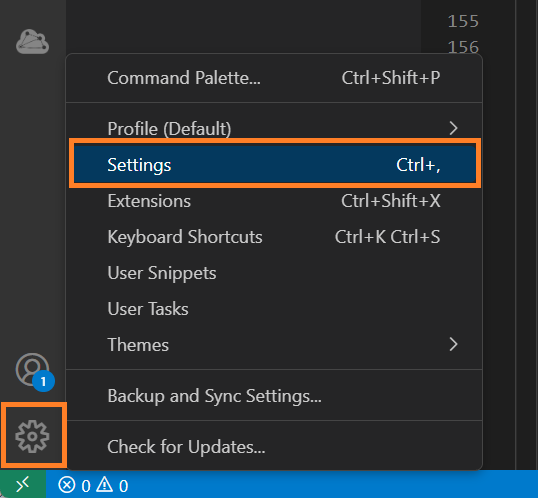
VS Code limits the maximum number of validation messages per file to approximately 1000. To respect that and prevent any disconnect between the extension validation information and one shown on the Editor and Problems views, we've also limited the maximum number of validation messages per file to be 999 by default. However, for bigger API definition files it's often common to see larger no. of issues in a single file. In such cases, if a user wishes to see the complete list of validation issues in the extension as well as generate full validation reports, they can change the maximum limit as per their needs or remove it entirely, from the extension settings. To do this, navigate to the VS Code Settings (select the gear icon at the bottom left side of the Activity Bar):
Next, navigate to the APIMatic settings from the Extensions side-menu:
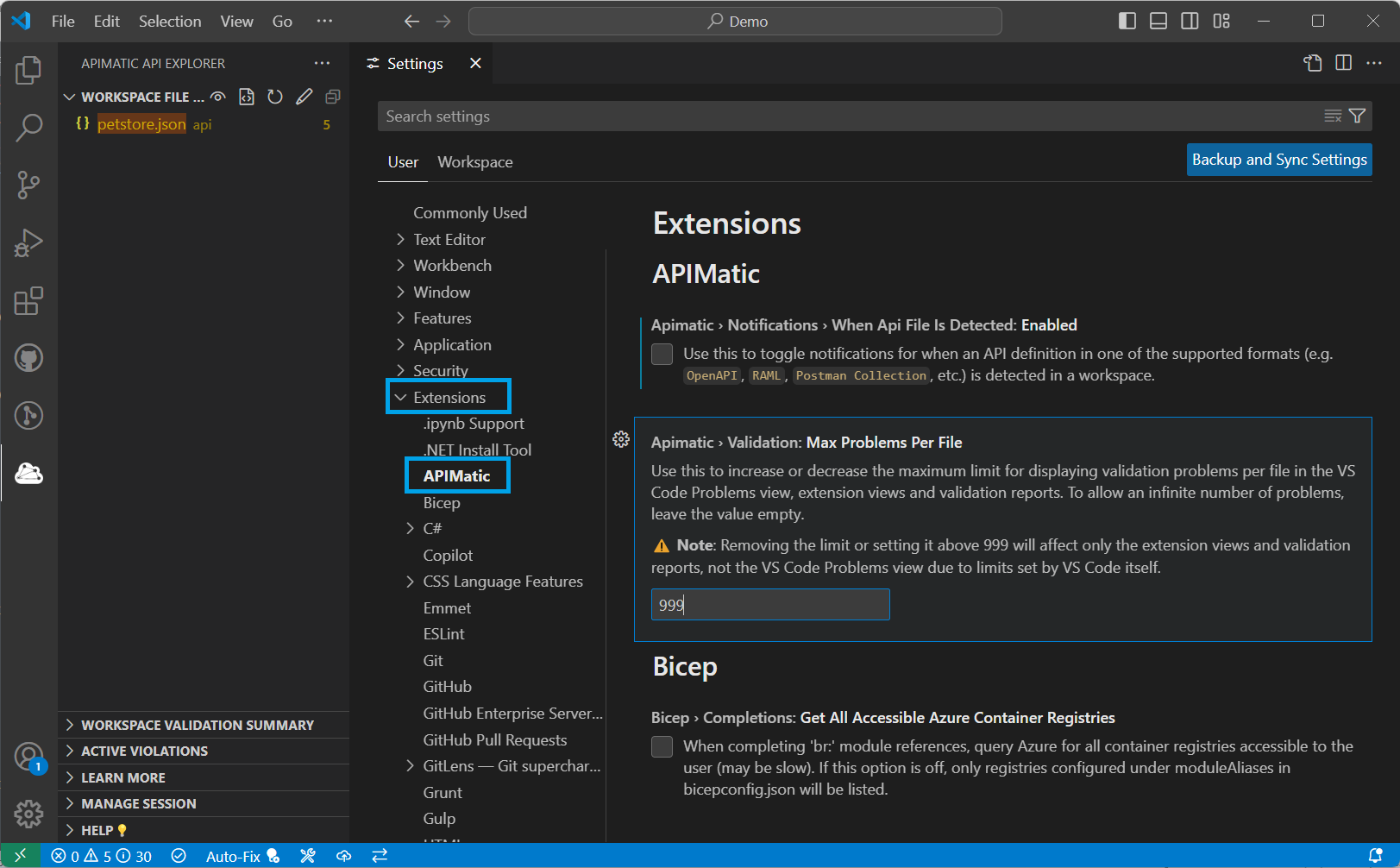
Here the limit value set in the Max Problems Per File setting can be increased/decreased either for a specific workspace or globally for all workspaces in the User tab, as per needs. To allow an infinite number of problems, leave the value empty.
Note, however, that changing the validation problems limit will only affect the extension views and validation reports and won't alter the VS Code Problems view or no. of Editor problems due to limits set by the VS Code itself.