
VS Code Extension Overview
Install APIMatic for VS Code and validate your first API definition.
APIMatic offers a VS Code extension that enables you to easily validate and lint your API definition files in any of the supported formats. The API definition files aren't only validated against standard checks but also linted for ensuring smoother SDK generation, developer portal generation, and format transformation.
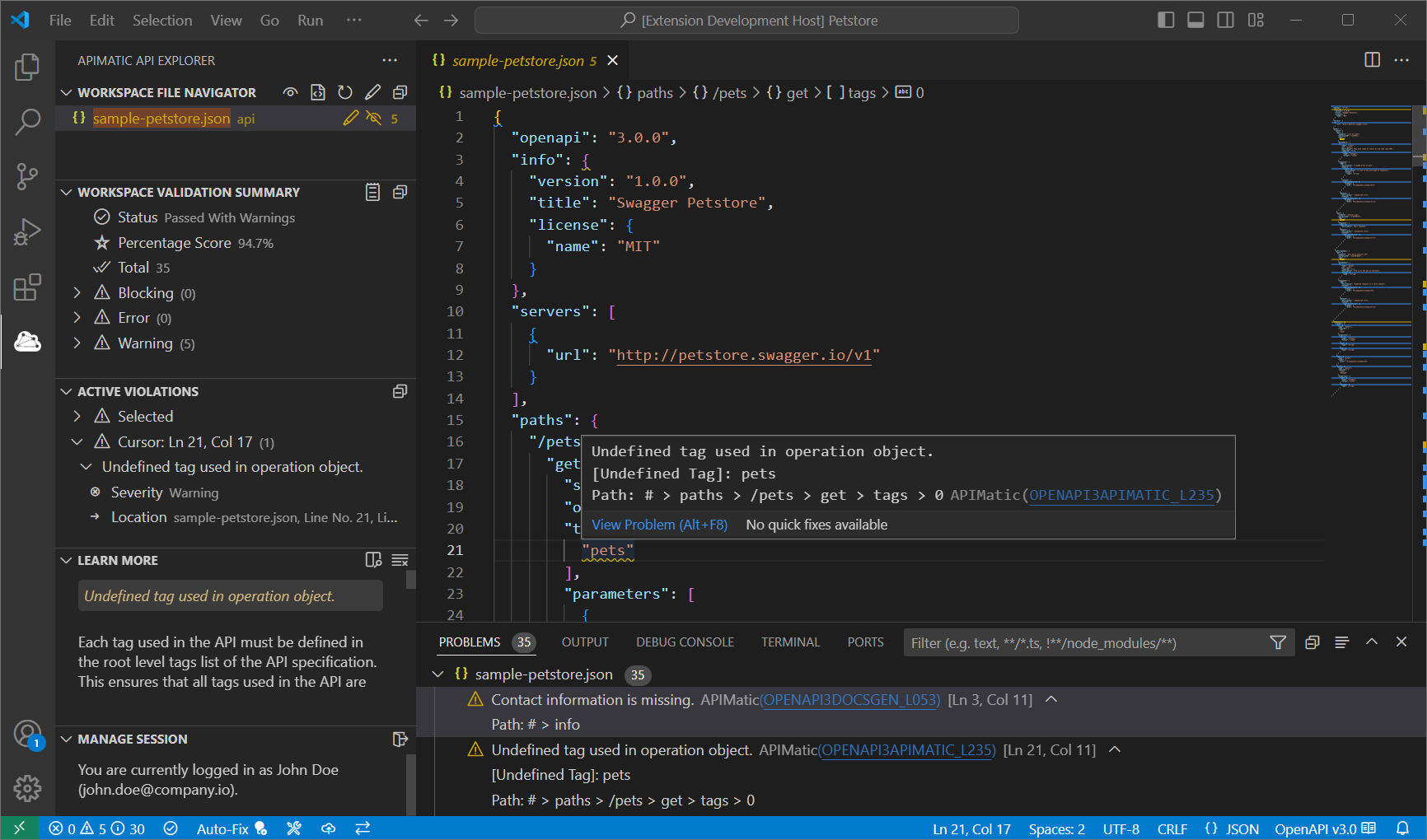
The extension provides a richer validation experience by offering dedicated views with messages organized for easy navigation, contextual data for each issues (for example, line and path information, call tree to trace origin) as well as detailed descriptions, hints and reference documentation links for resolving issues quickly. It also supports automatic fixing of common issues found in OpenAPI v3 files (for example, inline schemas) that hinder output quality or generation. You can also generate summary reports in multiple formats (PDF, HTML, JSON, Markdown) for sharing with any relevant stakeholders.
Once your API definition is ready, you can also transform it to another format without leaving VS Code.
Install the extension
First, make sure that you have:
-
Visual Studio Code version 1.75.0 or above installed. Use download link.
-
A stable internet connection.
Next, install the APIMatic for VS Code extension from the Visual Studio Marketplace:
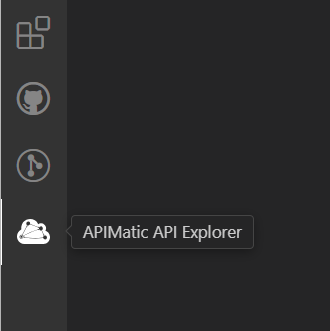
On successful installation, the APIMatic API Explorer should be visible in the Activity Bar:
For more about installing VS Code extensions, see the VS Code documentation.
Follow the walkthrough
To help you quickly familiarize yourself with all the main features and capabilities, the extension includes a comprehensive getting started walkthrough as part of the VS Code welcome feature:
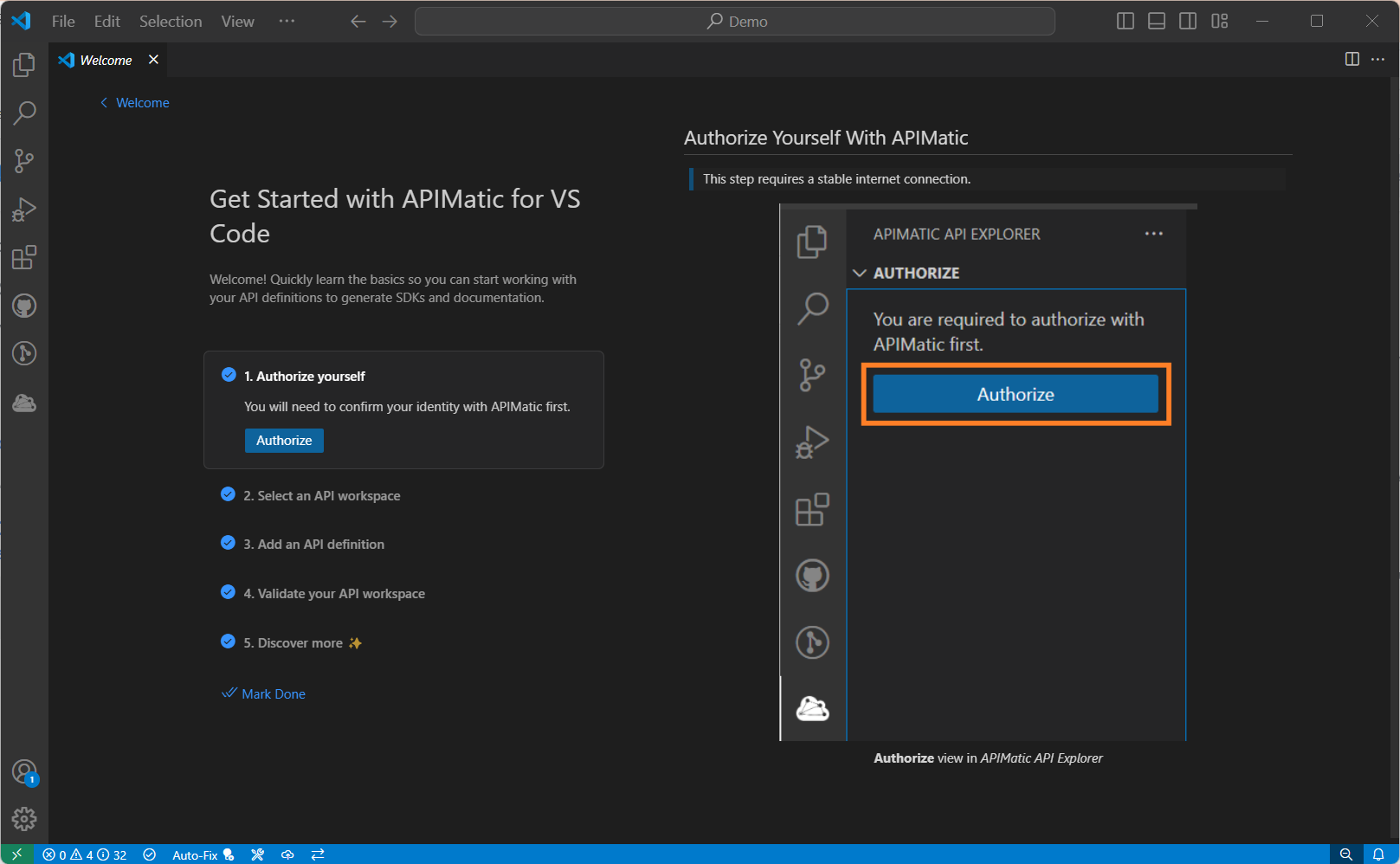
This step-by-step guide provides a hands-on experience, making it easier for you to get started.
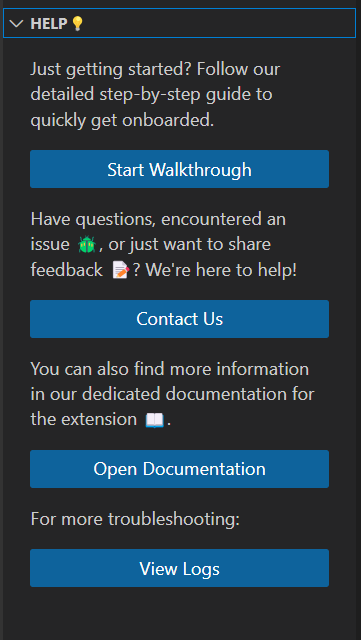
If you're having trouble finding the walkthrough or need to revisit it later, you can also access it using the extension's Help view Start Walkthrough option:
Validate an API definition
1. Sign in to APIMatic
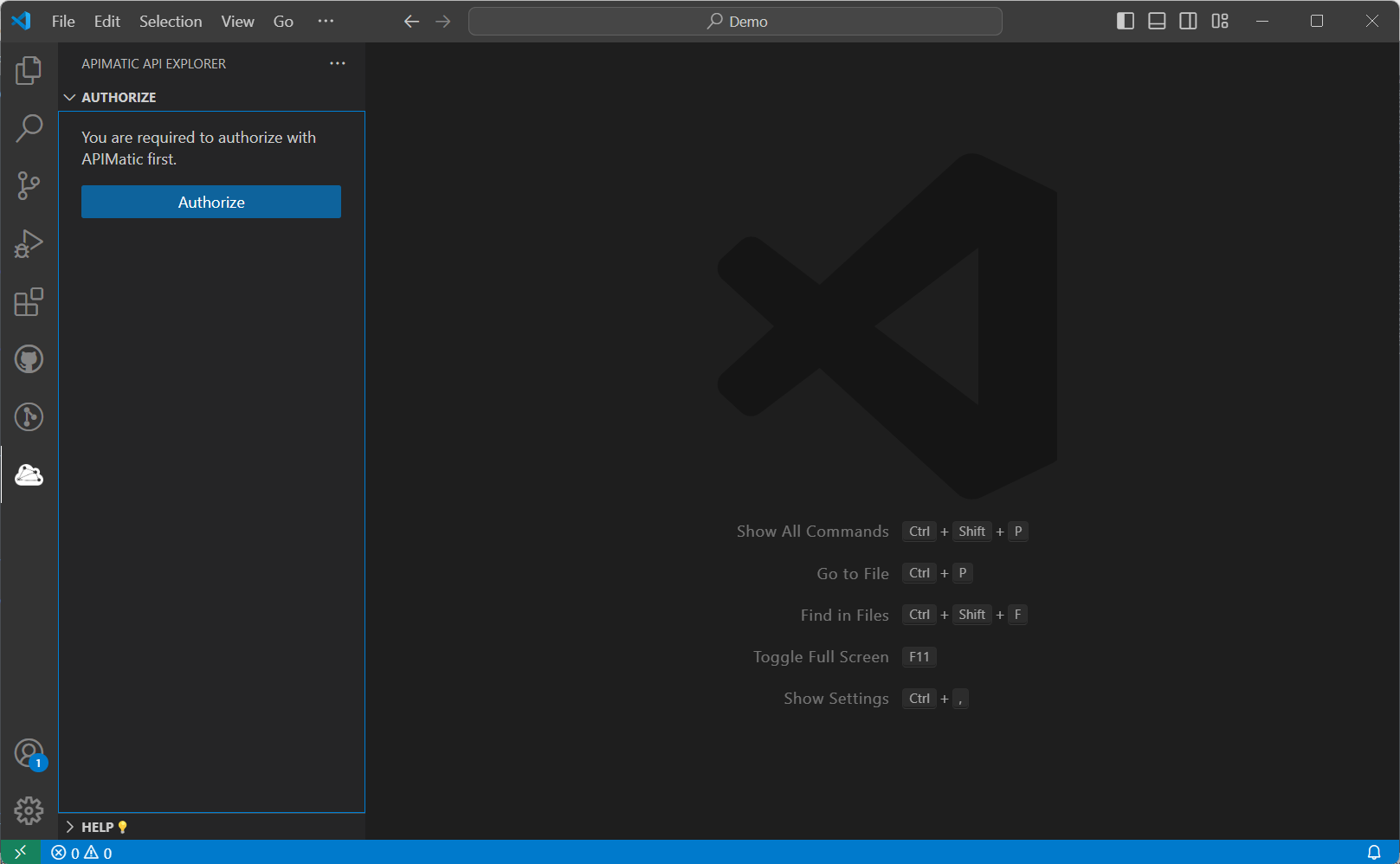
To start using the extension, you first need to authorize yourself with APIMatic. Select the Authorize button visible in the welcome view:
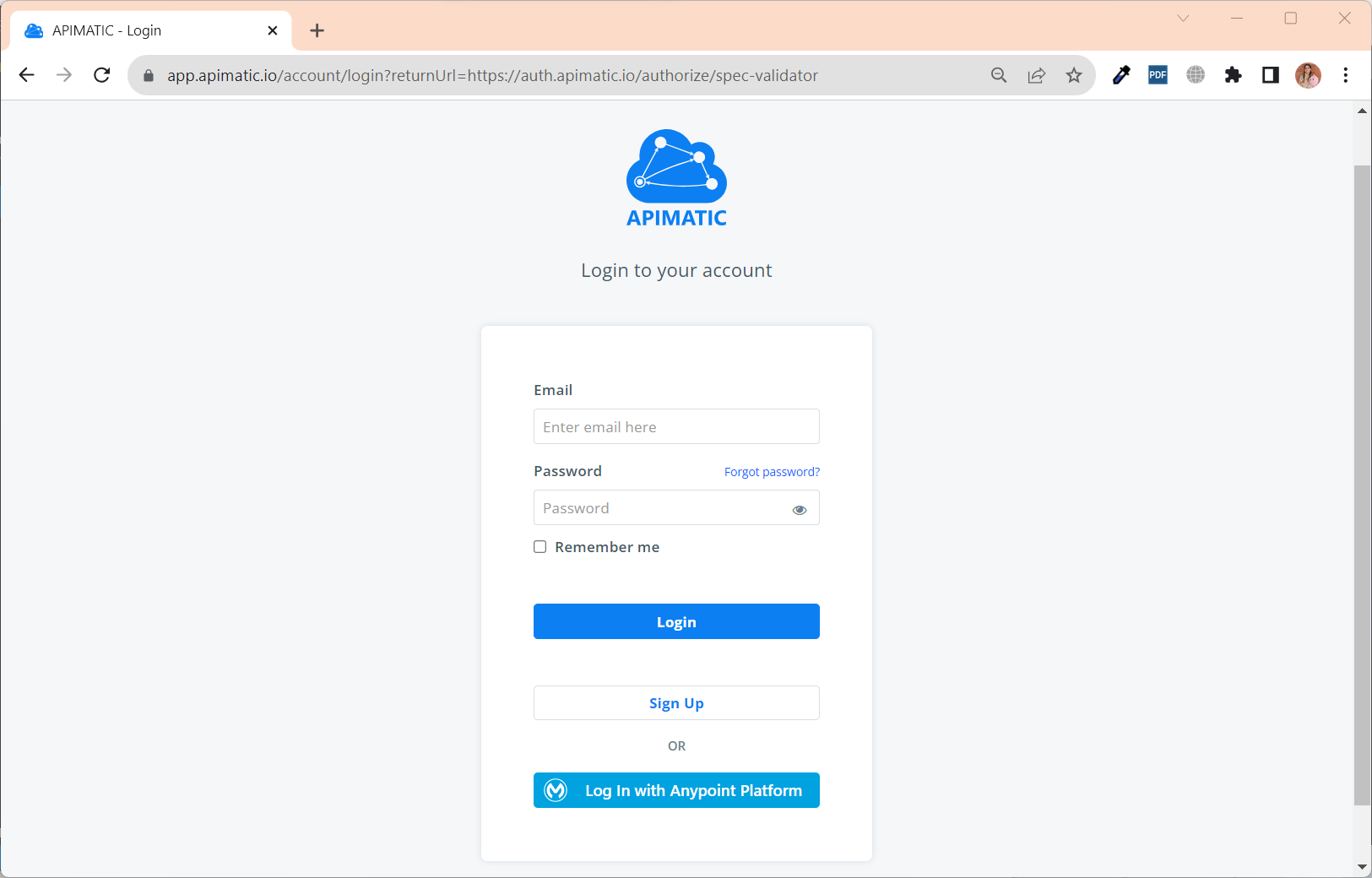
This opens the APIMatic sign-in page in your default browser. If you're a new user, sign up first; it takes a few quick steps and it's free:
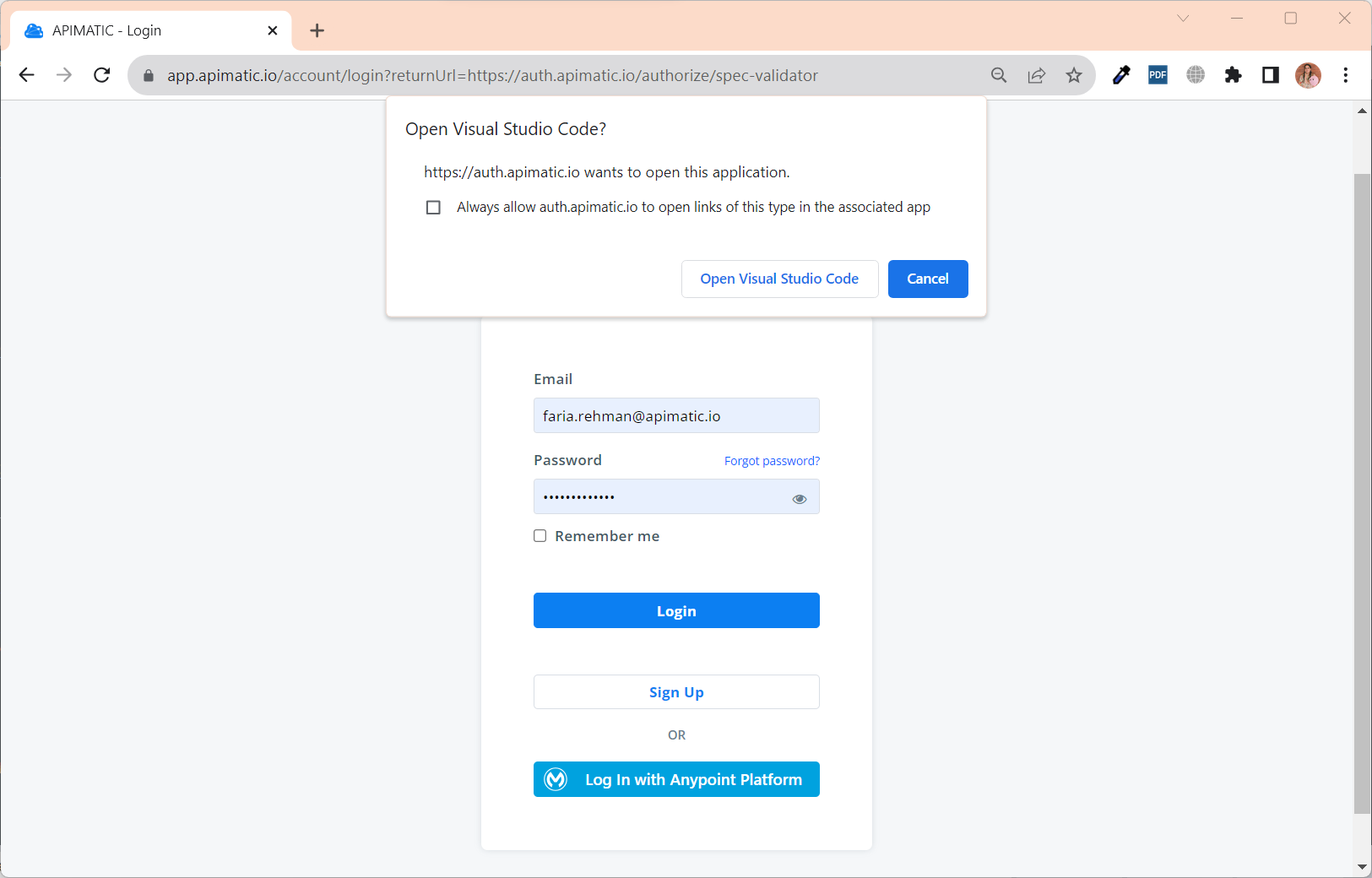
Once you have successfully logged in, you will be redirected back into your VS Code extension:
Your session details will be visible in the Manage Session view of the APIMatic API Explorer:
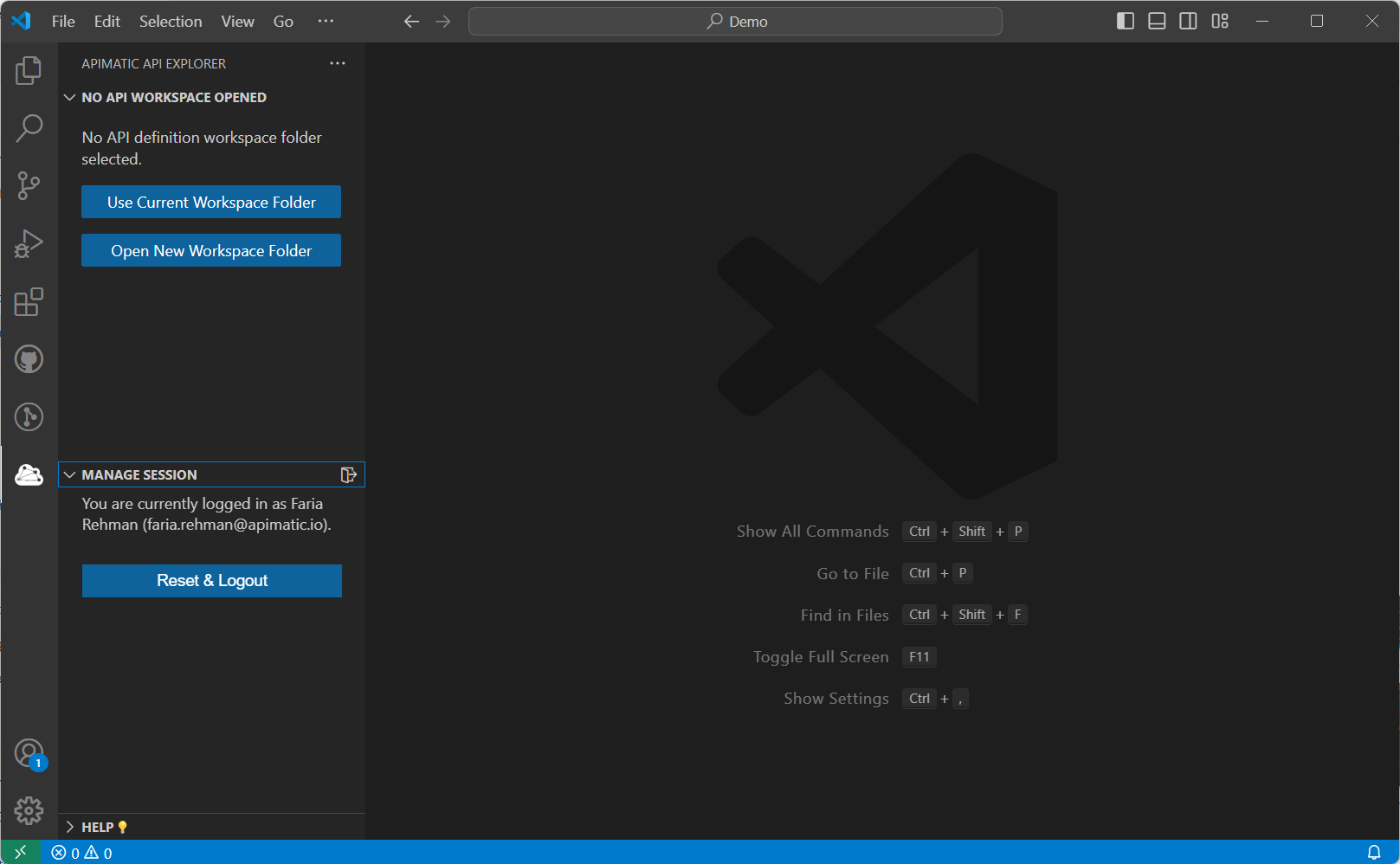
2. Open an API workspace folder
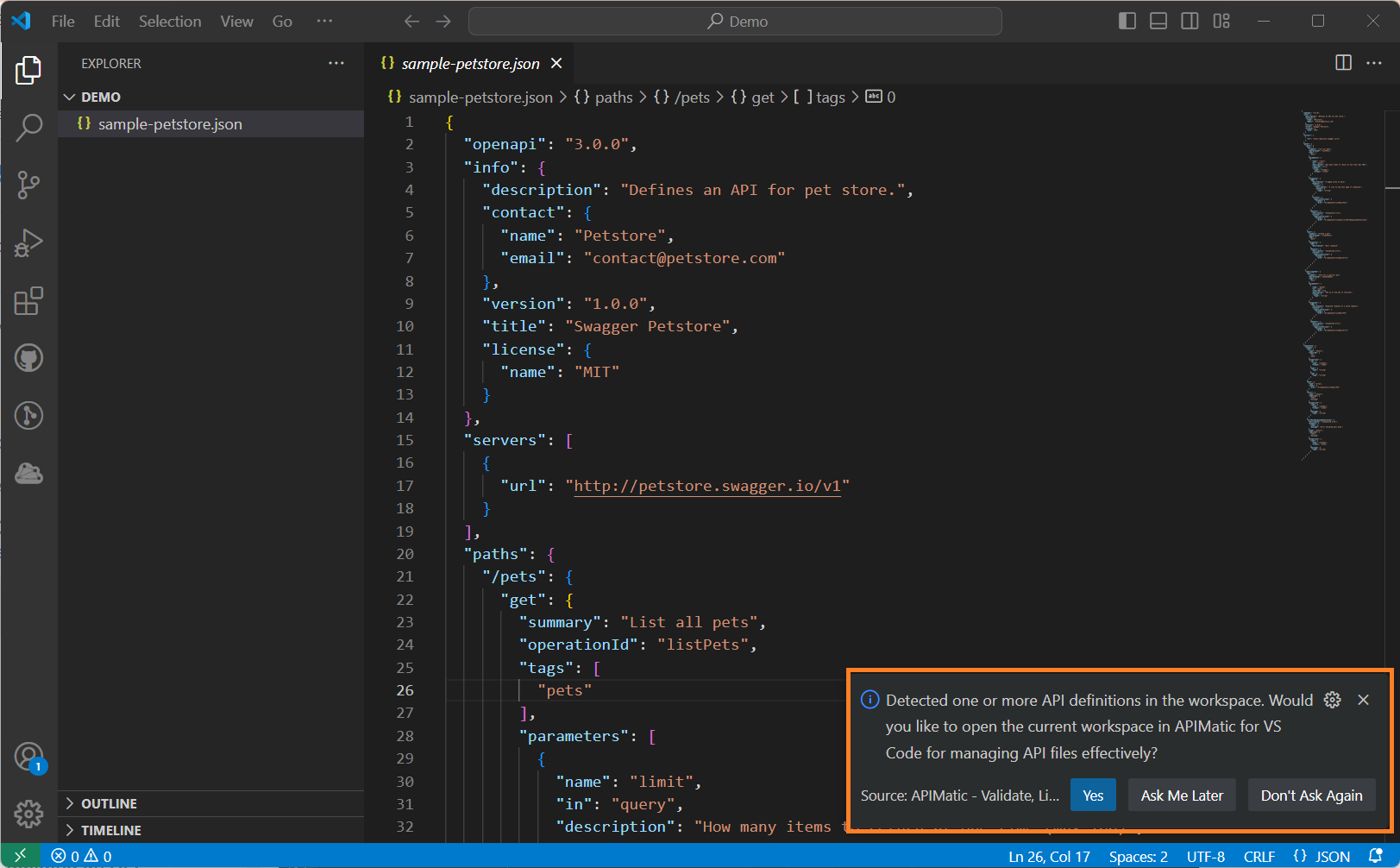
To validate your API definition, you need to have a dedicated workspace folder open in your VS Code where you will work with one or more files associated with the API definition itself. If you already have a folder open that also contains an API definition (for example, OpenAPI), you will receive a notification to open it as an API workspace in the extension. Select Yes to use it as your API workspace:
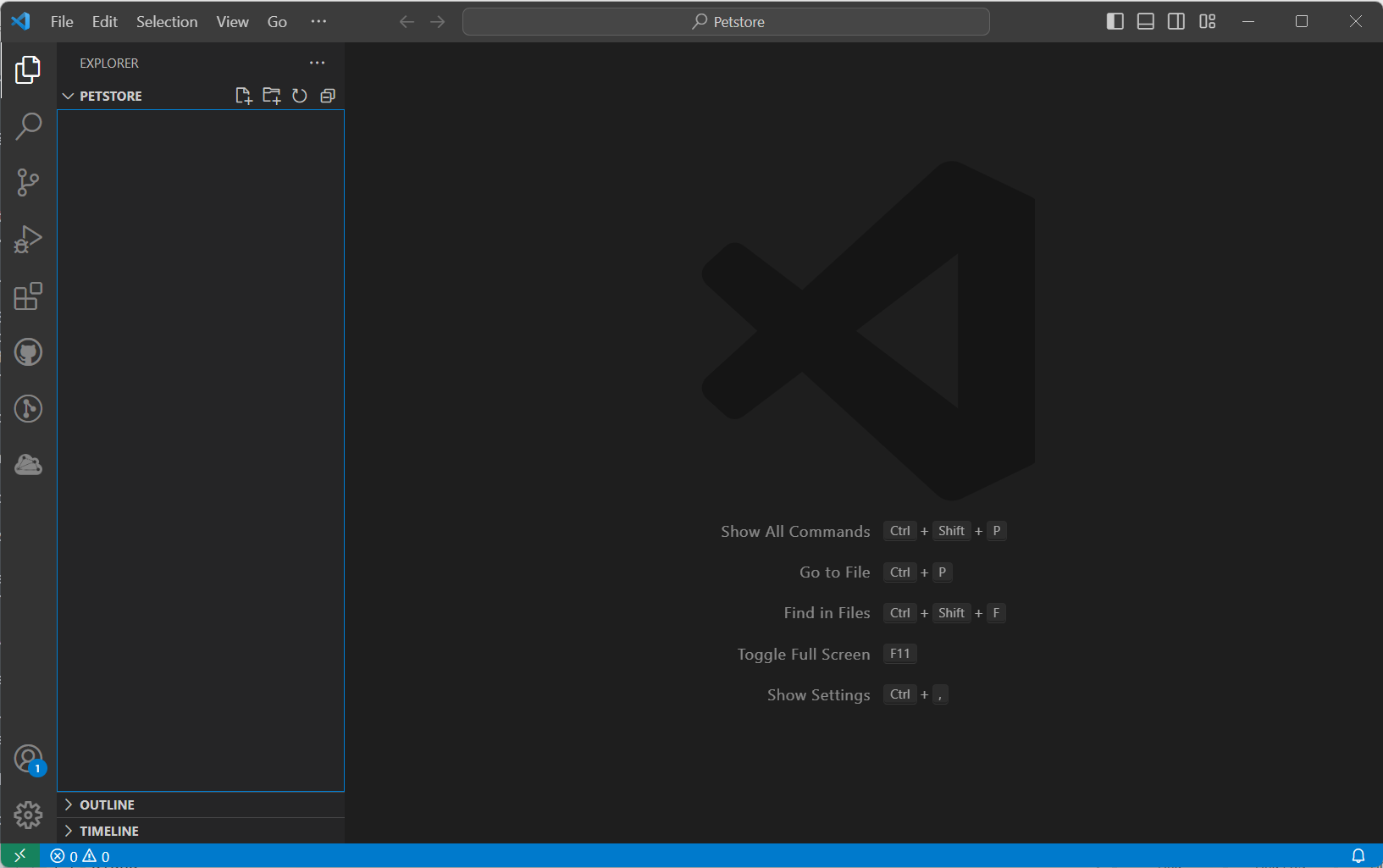
If you don't have an existing API workspace folder, you can still open it as your API workspace. This guide uses an empty workspace folder as shown below:
Navigate to the APIMatic API Explorer view in the Activity Bar and select Use Current Workspace Folder to use the current folder as your API workspace.
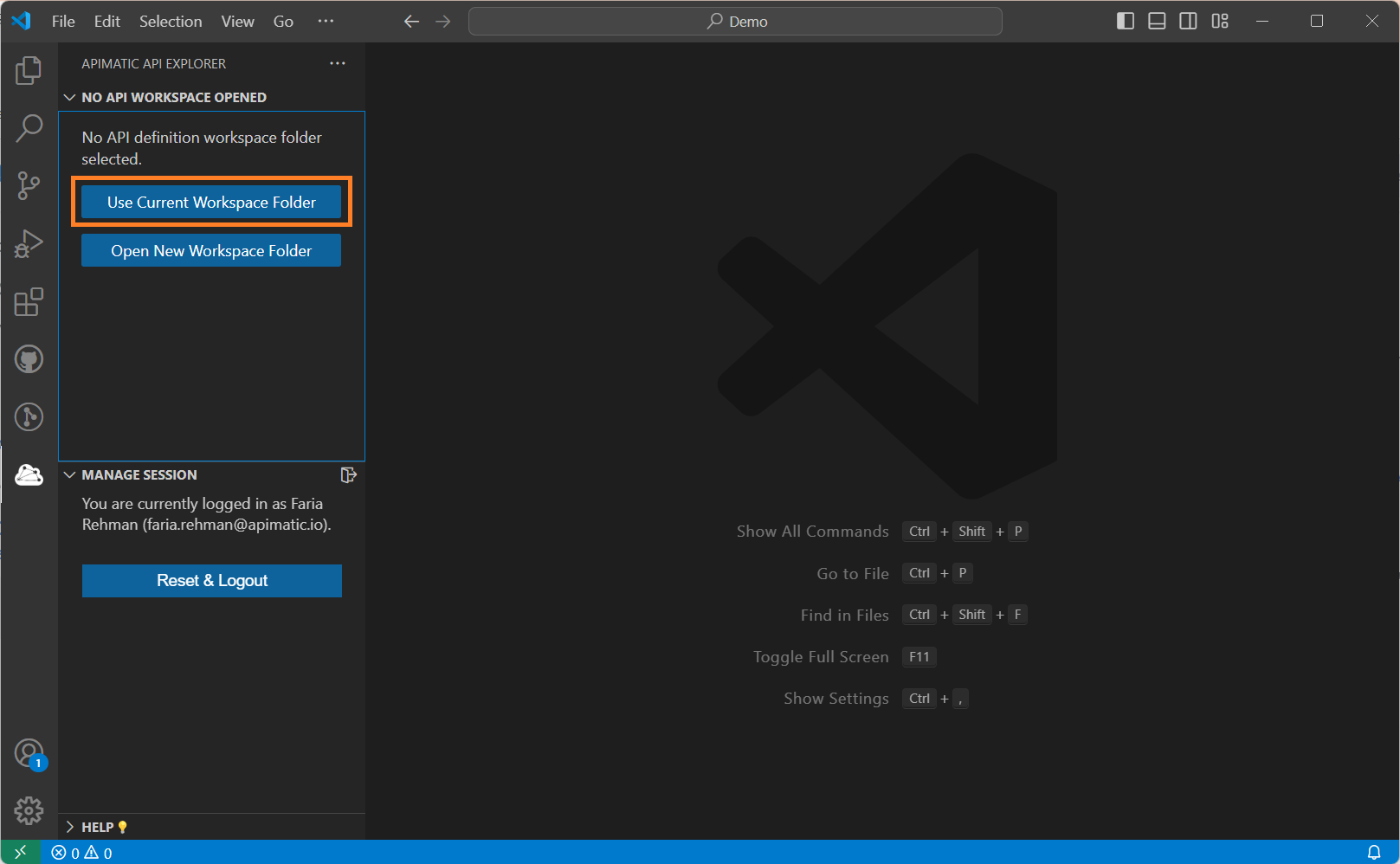
3. Import an API definition
If your workspace already contains an API definition, its main entry file will be automatically detected and the validation should start automatically. However, in this example the workspace doesn't contain any API definition, therefore, a welcome view is shown with various options to create/import an API definition.
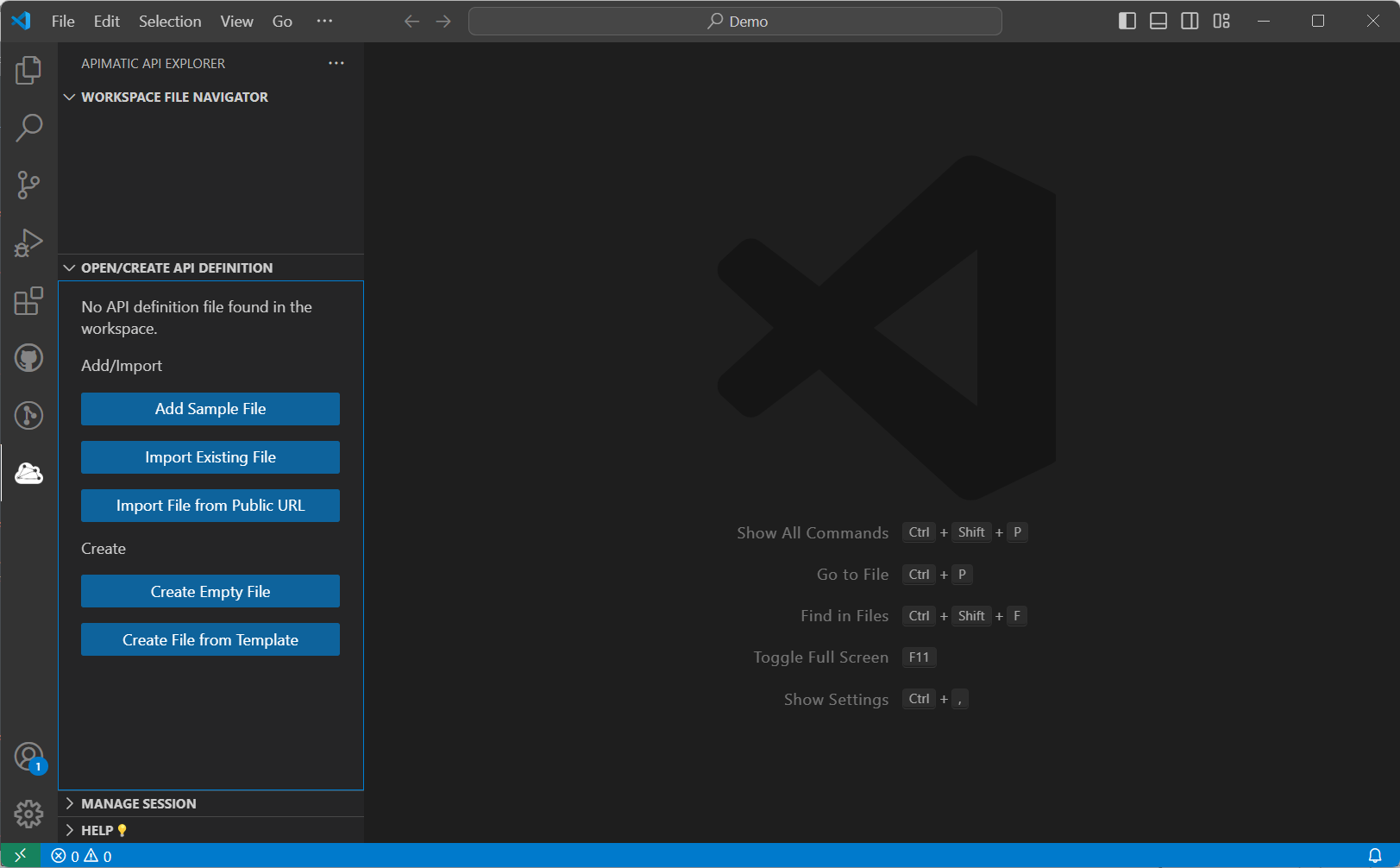
Import a JSON sample file using the relevant options as shown below:
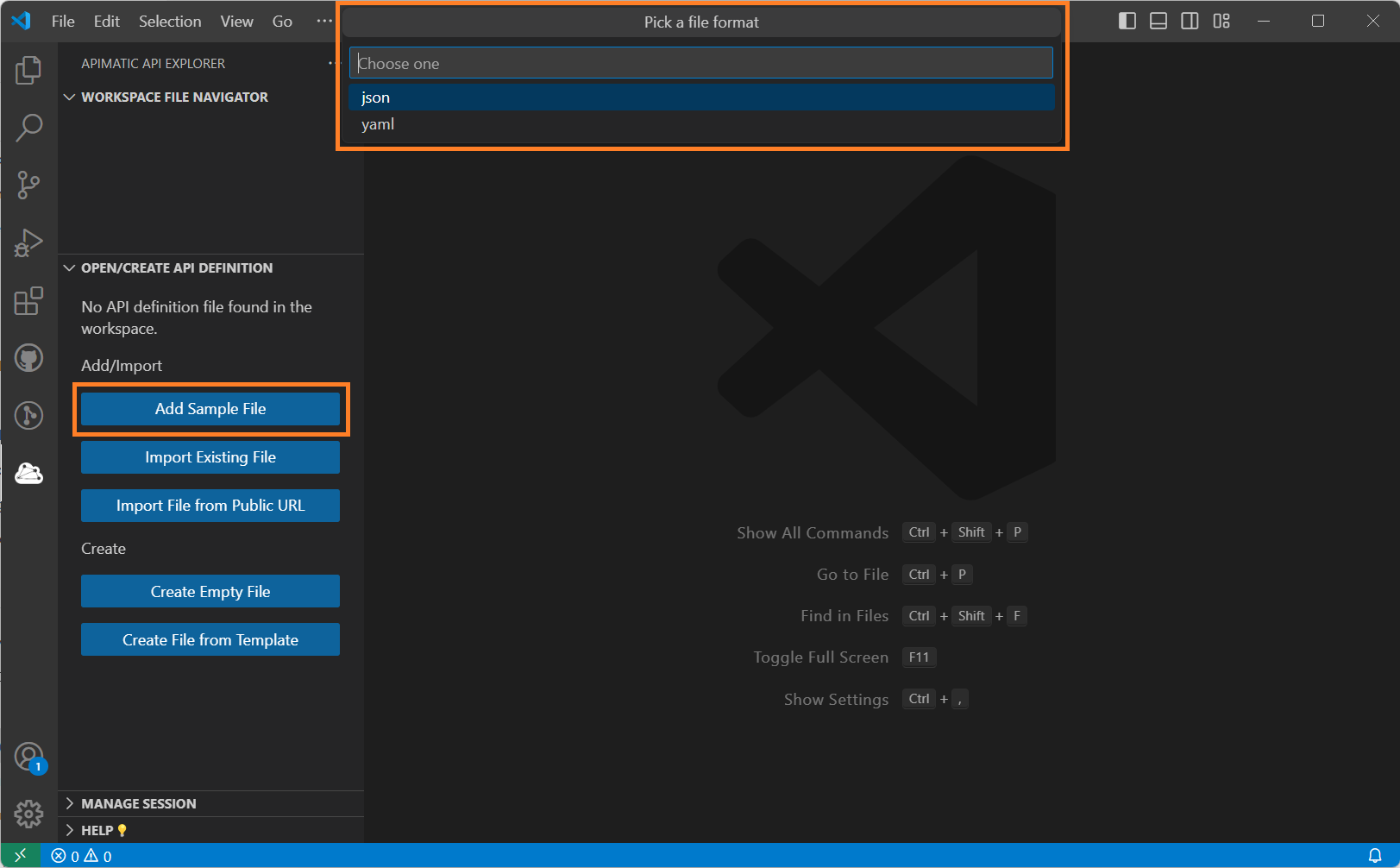
4. Fix issues in the API definition
As soon as an API definition is added to the workspace, it will be automatically validated. You can also manually trigger validation by saving your API definition files.
When the validation completes, the APIMatic API Explorer views, Editor and Problems view will be populated with relevant data to help you tackle all issues.
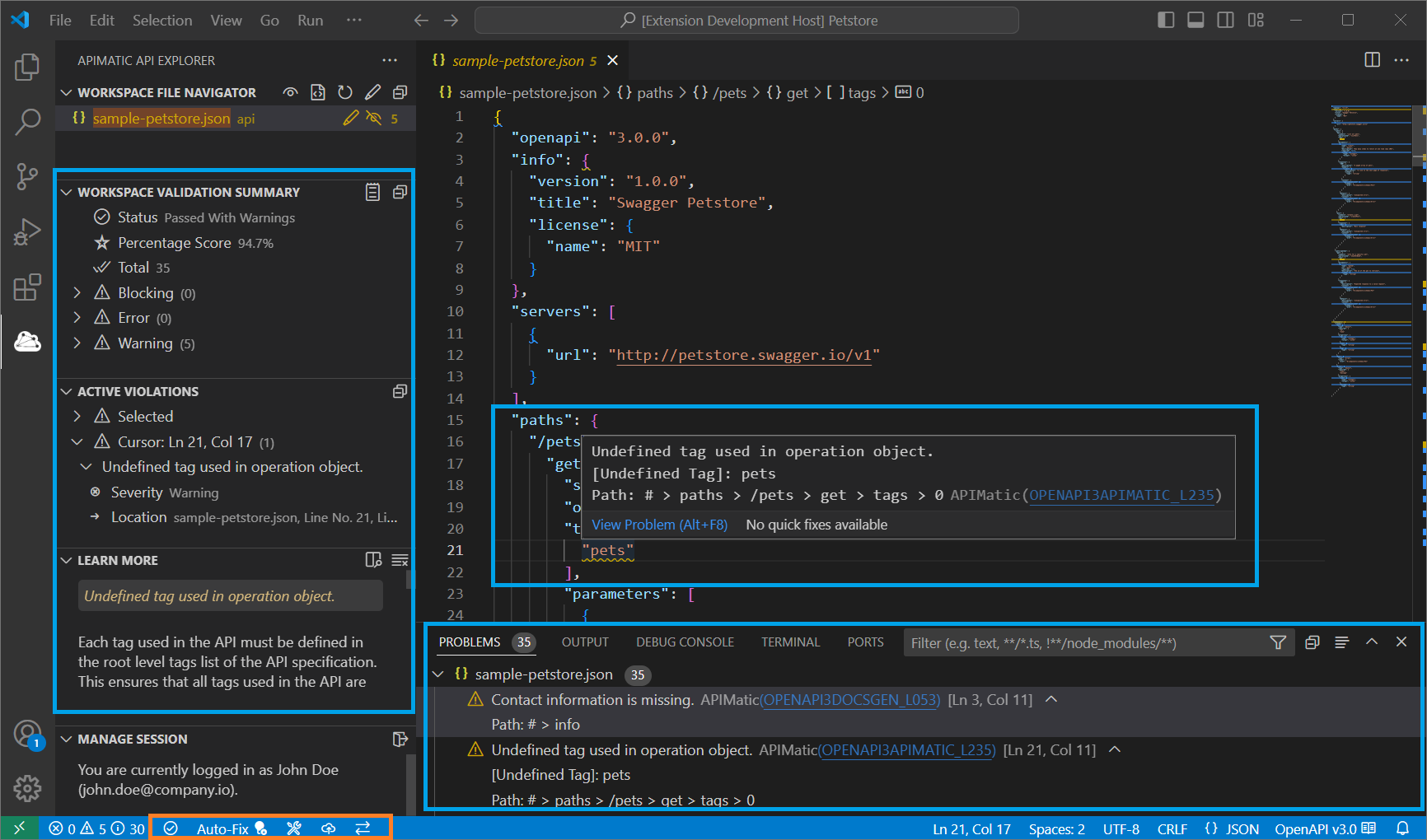
Once you have resolved all blocking issues, use the APIMatic CLI to generate a developer portal or an APIMatic SDK from your API definition.
Capabilities
The VS Code extension offers the following:
- Setting up an API workspace.
- Validating an API workspace.
- Automatically fixing an API workspace.
- Building an API workspace.
- Transforming API workspace specification format.