
Transform an API Workspace
Convert your API workspace to another API definition format with APIMatic for VS Code.
Transform your API workspace to a different API definition format with the Transform feature of APIMatic for VS Code.
Prerequisites
-
You must be signed in to APIMatic with an API key to transform your API workspace. To get one, see Obtaining Authentication Keys. The first time you transform, you're asked for the key:
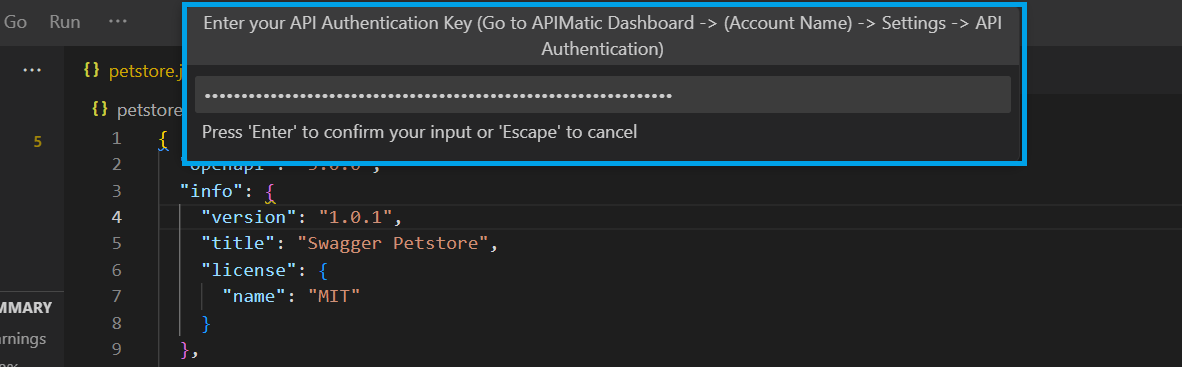
Only if the provided key is valid, will you be allowed to proceed with the transformation. You will not be prompted for the key again for as long as it is valid.
-
In order to transform your API workspace, it is required for your workspace to pass the Build first.
Transform the API workspace format
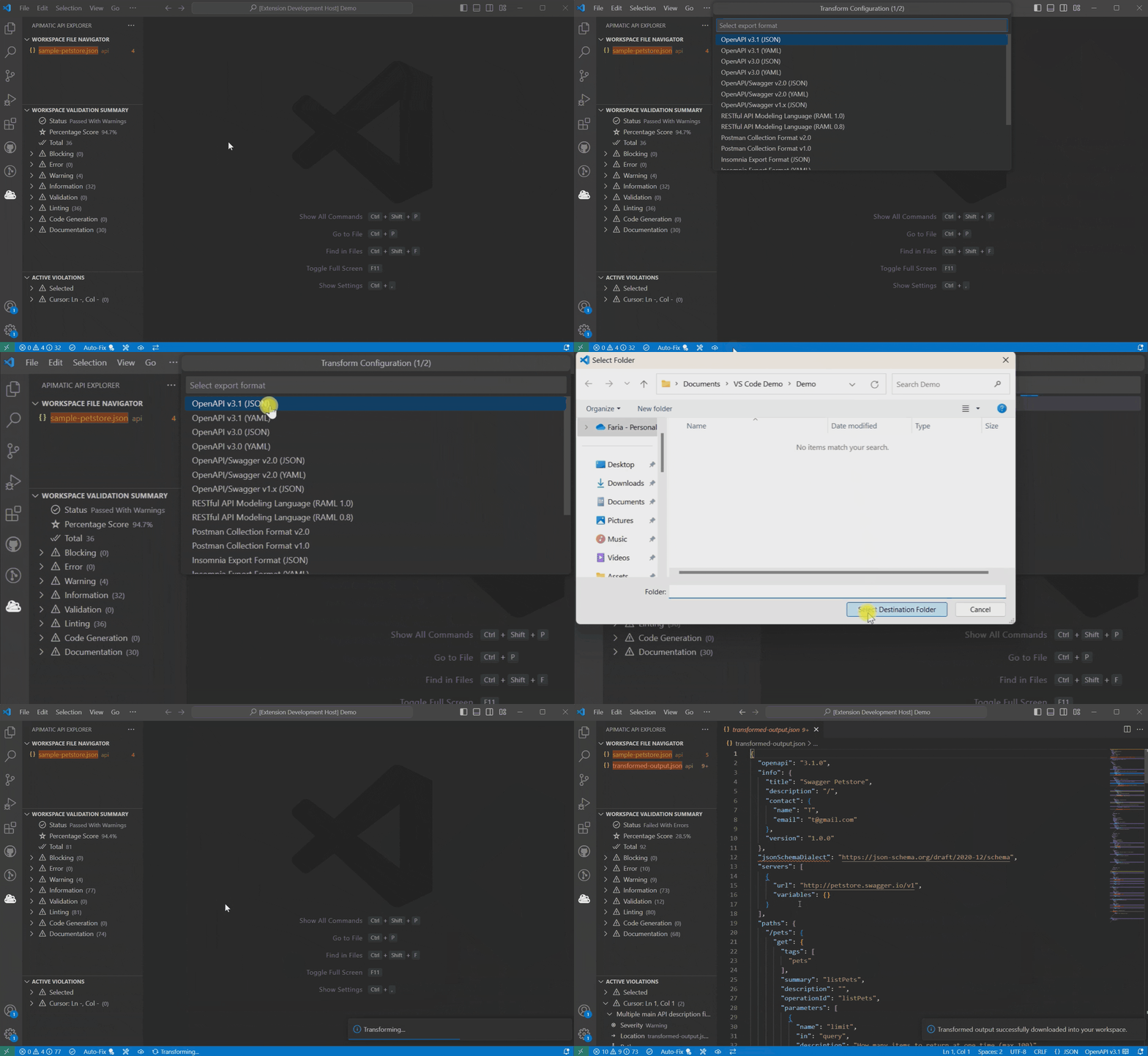
To transform your API workspace specification format, select the two-way arrow (<->) icon from the left side of the status bar:

Select the desired output API specification format from the list for example, OpenAPI v3.1:
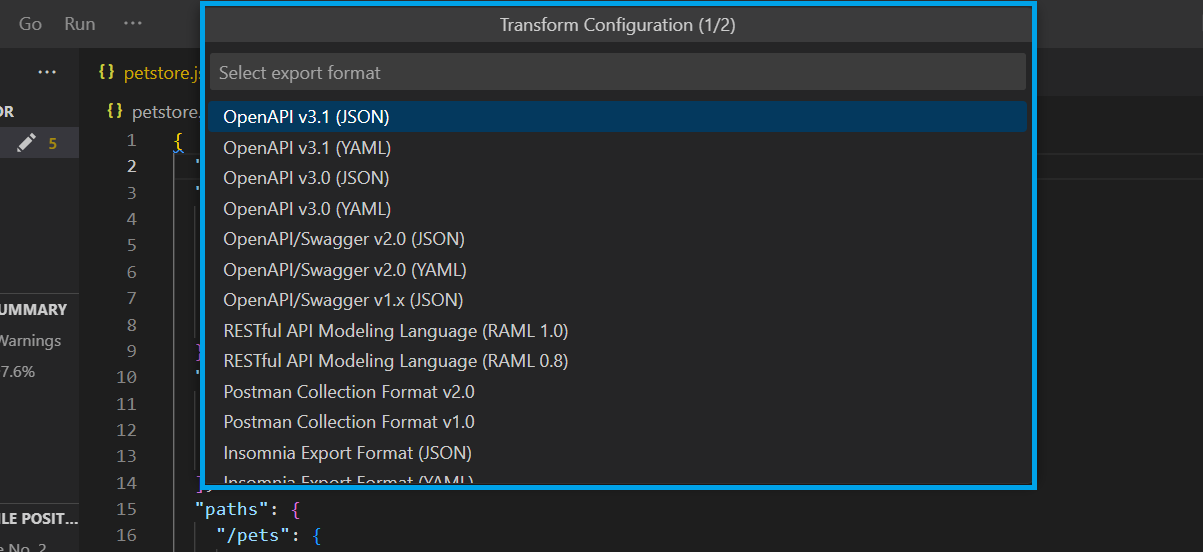
Next, select the destination folder where you would like to save the transformed output file:
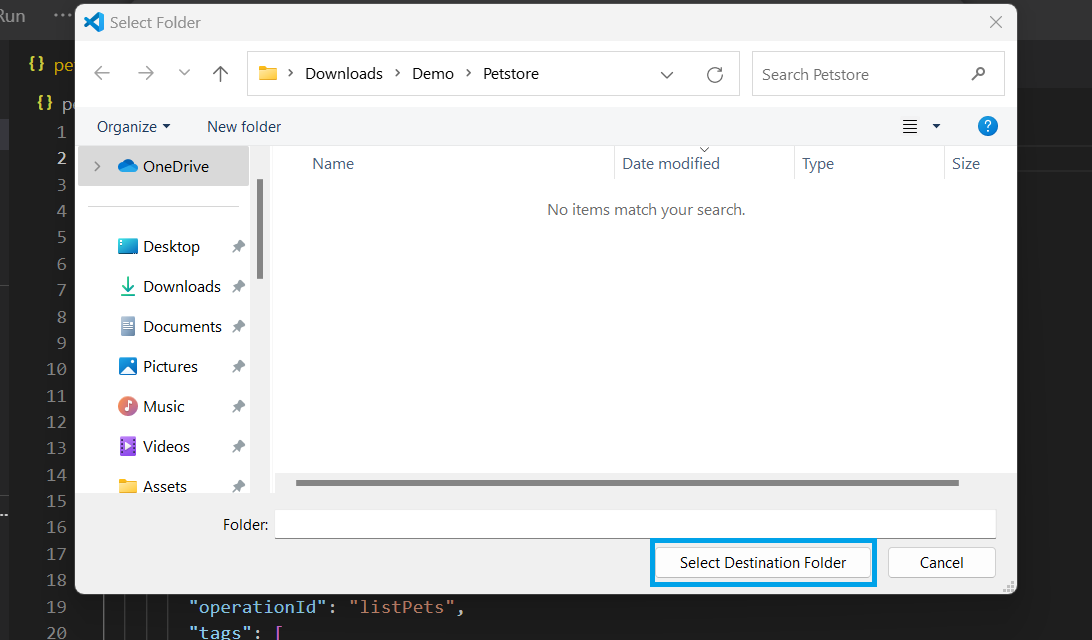
After selecting a folder, if your workspace isn't already built, the build process will start first:

If the build passes, the transformation process will start next. During this, you should see a Transforming... message in the status bar:

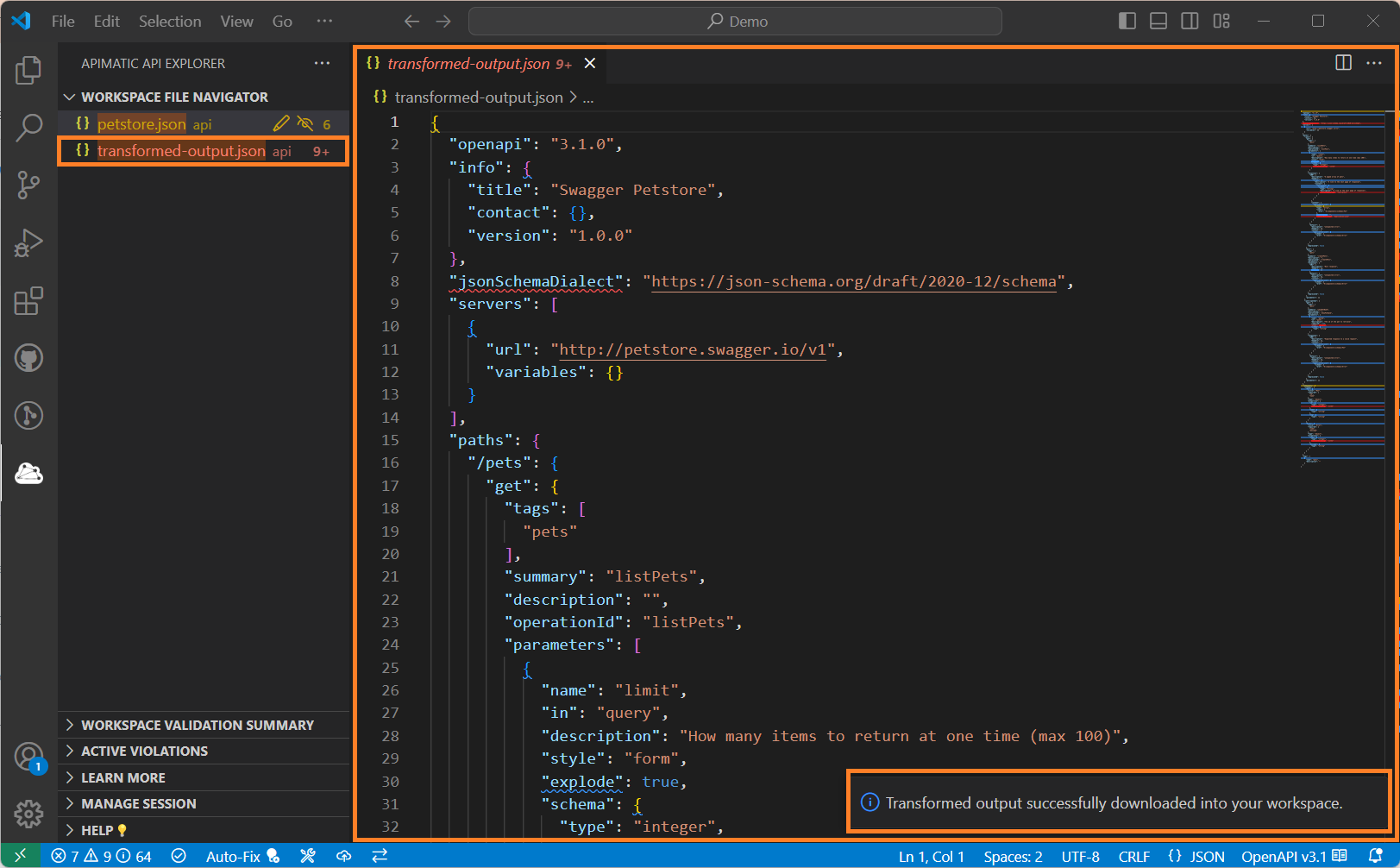
When the transformation is complete, the converted output will be downloaded into your workspace root folder:
Configure the transformation
A transformation imports your definition and exports it in the new format, so you control it with import and export settings in the APIMatic Metadata file. The extension can add a metadata file with default import and export settings for you:
-
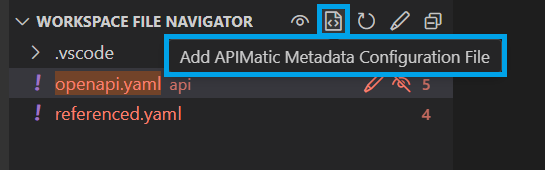
Hover near the Workspace File Navigator view title and select the Add APIMatic Metadata Configuration File option:
-
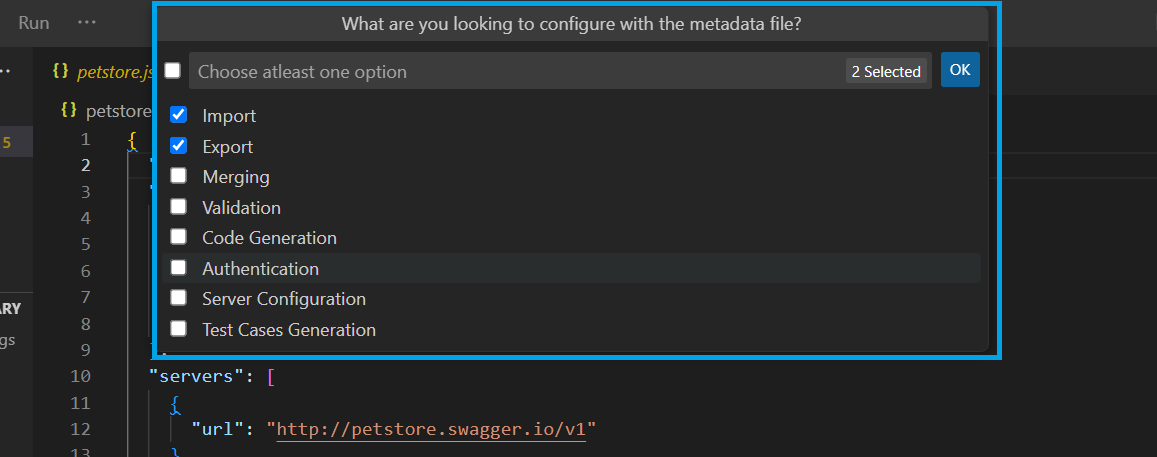
Select Import and Export from the list and select OK:
-
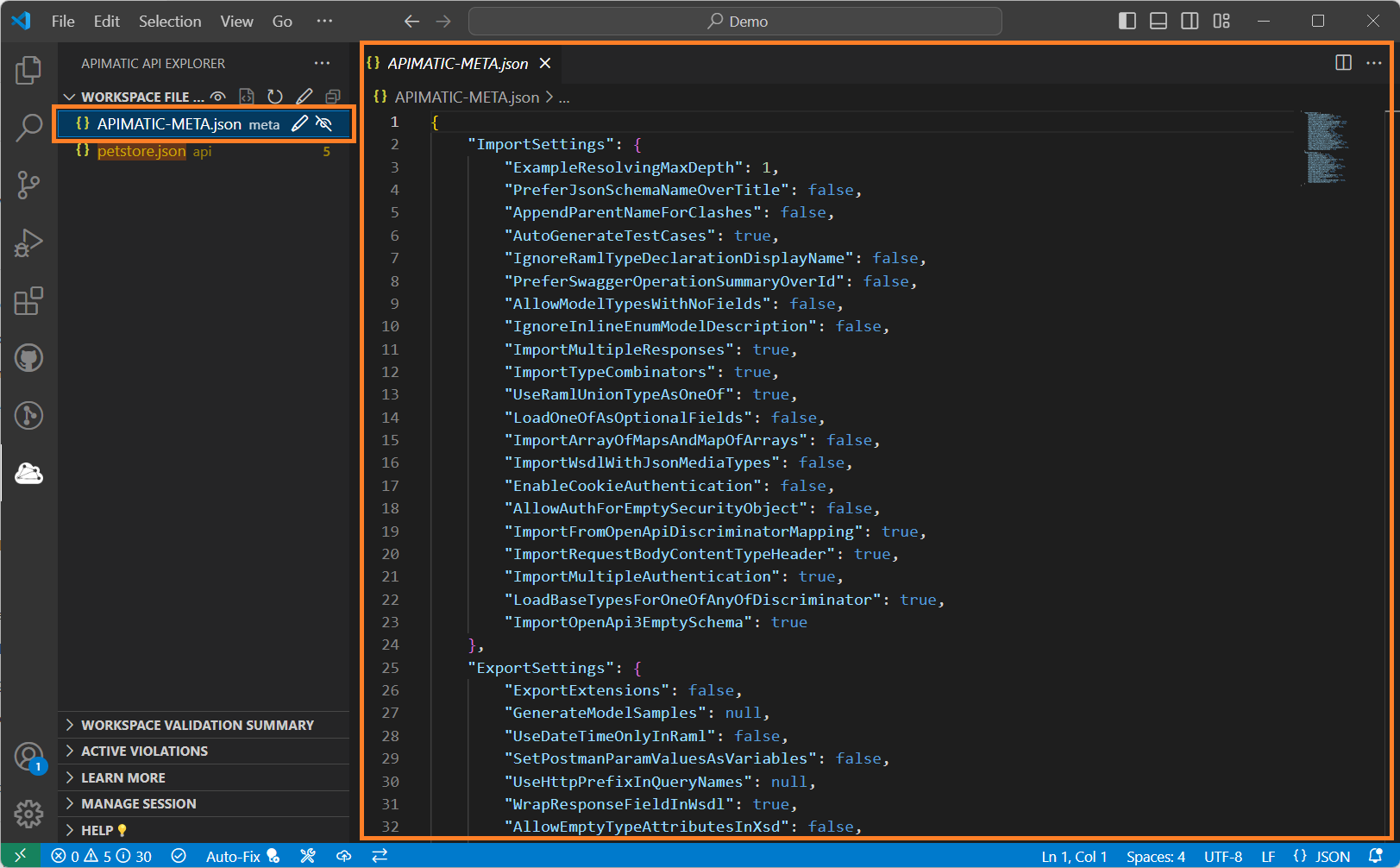
An APIMatic Metadata file with default import and export settings is added to your workspace. Change the settings to control the transformation:
Learn more
You can find out more details here about the APIMatic API Transformer, including supported input and output formats.