Publish Via CLI
Publishing is the second of the two steps in SDK publishing. Once a publishing profile and its credentials are in place, every release is published from your terminal with the APIMatic CLI. This is also what you wire into a CI/CD workflow so that every release publishes the same way.
The previous, fully UI-driven walkthroughs are preserved at SDK Publishing Tutorial (Legacy Dashboard) for package publishing and Publishing SDKs to GitHub (Legacy Dashboard) for source code publishing.
Before You Start
- Install the APIMatic CLI and authenticate with your APIMatic account.
- Create a publishing profile with the credentials for the platforms you publish to.
Find Your Profile ID
Run the following command to list all publishing profiles associated with your account and retrieve the profile ID:
apimatic publishing profile list
The output lists each profile's name, ID, and enabled languages.
Publish an SDK
Run the following without any flags for a step-by-step interactive experience that prompts you for each value:
apimatic sdk publish
Publishing in CI/CD
Use the sdk publish command with your profile ID, target language, version, and publish type. The version must follow the semantic version format MAJOR.MINOR.PATCH, for example 1.0.1.
Publish to a Package Registry
Pass --publish-type=package to build the SDK and push it to the package registry configured in your publishing profile:
apimatic sdk publish --profile-id=a1b2c3d4e5f6a1b2c3d4e5f6 --language=typescript --version=1.0.0 --publish-type=package
Publish to GitHub
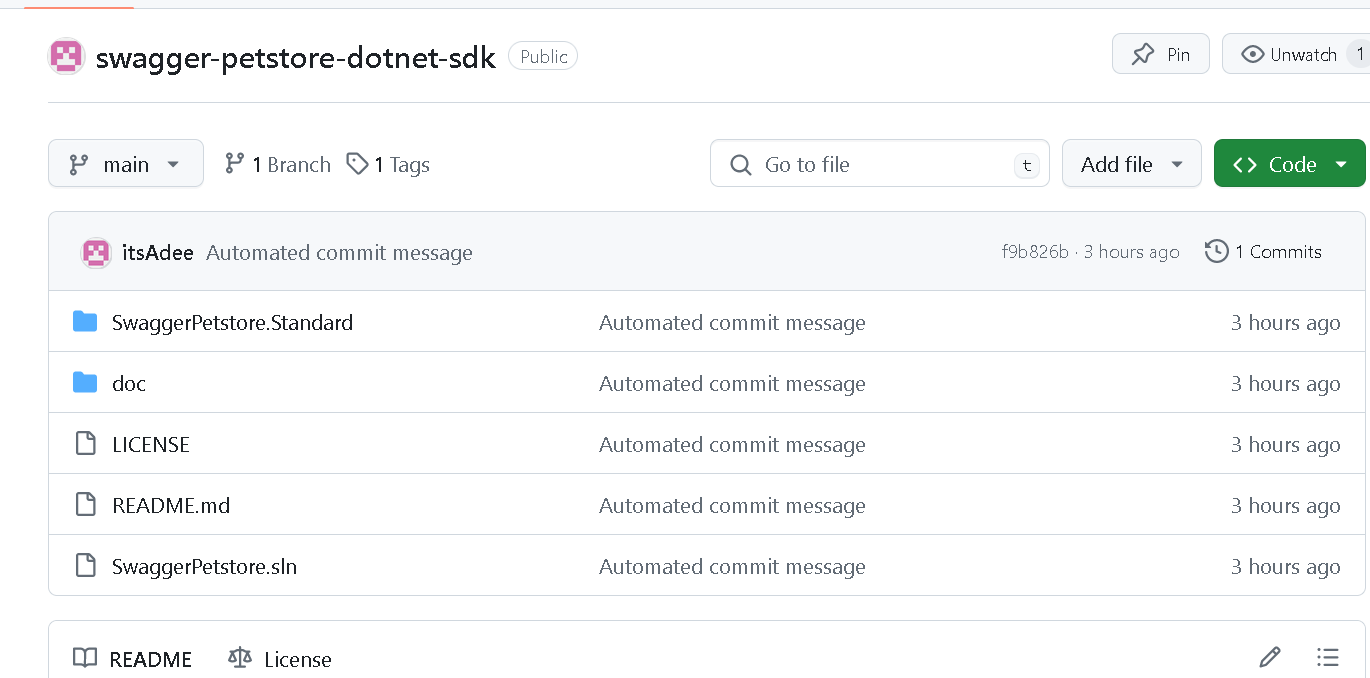
Pass --publish-type=sourcecode to push the generated SDK to the GitHub repository configured in your publishing profile. The version is also used to create a tag in your repository:
apimatic sdk publish --profile-id=a1b2c3d4e5f6a1b2c3d4e5f6 --language=typescript --version=1.0.0 --publish-type=sourcecode
Publish to Both
Pass --publish-type twice to publish to a package registry and GitHub in a single command:
apimatic sdk publish --profile-id=a1b2c3d4e5f6a1b2c3d4e5f6 --language=typescript --version=1.0.0 --publish-type=package --publish-type=sourcecode
Dry Run
Use --dry-run to only generate the SDK locally and review the output before publishing:
apimatic sdk publish --dry-run --profile-id=a1b2c3d4e5f6a1b2c3d4e5f6 --language=python --version=1.0.0 --publish-type=package
For the full list of flags and options, see Publish an SDK.
Monitor Publishing Runs
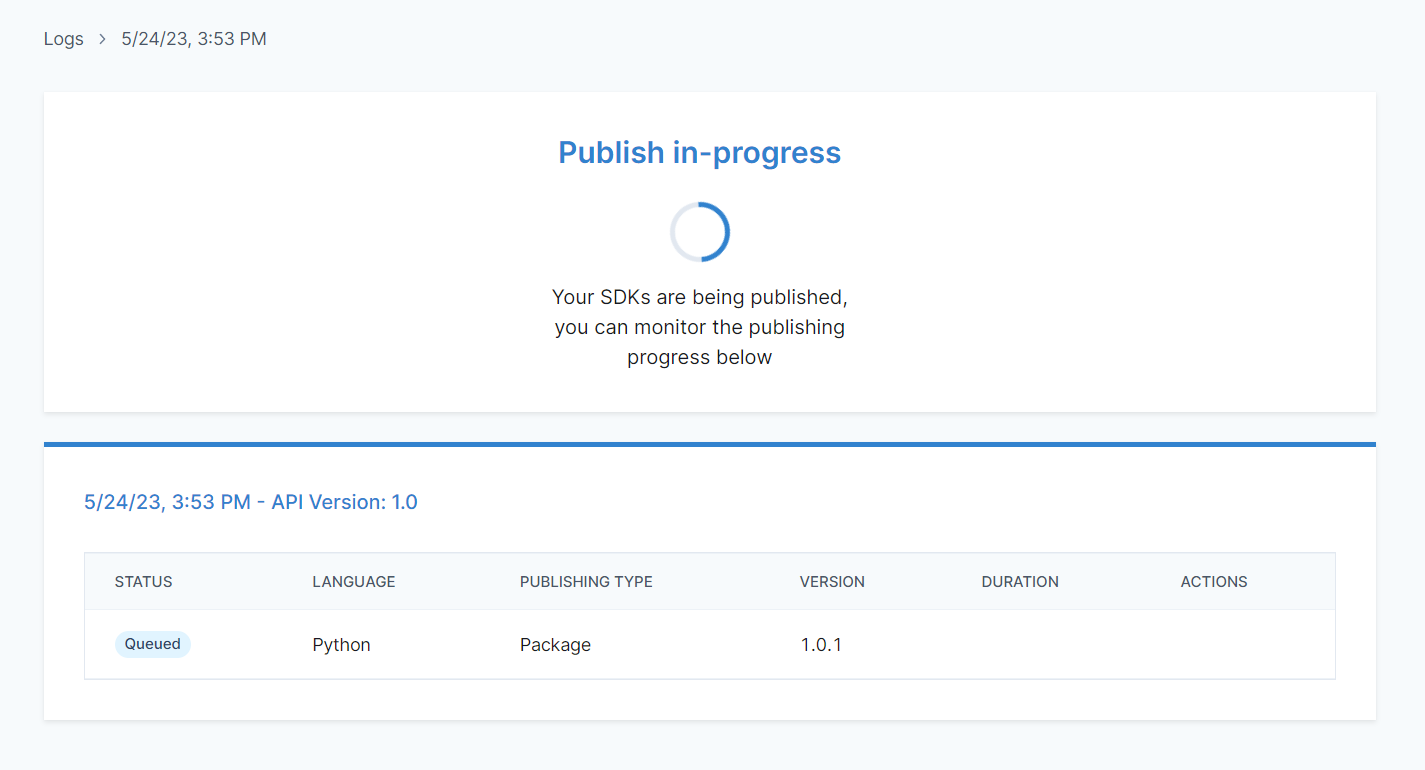
Publishing can take a few minutes. While the CLI reports progress in your terminal, the Publishing Center in the dashboard keeps the record of every publishing run.
You can track the publishing status of each individual SDK while it's being published. The status is updated dynamically as publishing progresses.
After publishing completes, the status of all initiated publishing attempts is updated to reflect either success or failure.
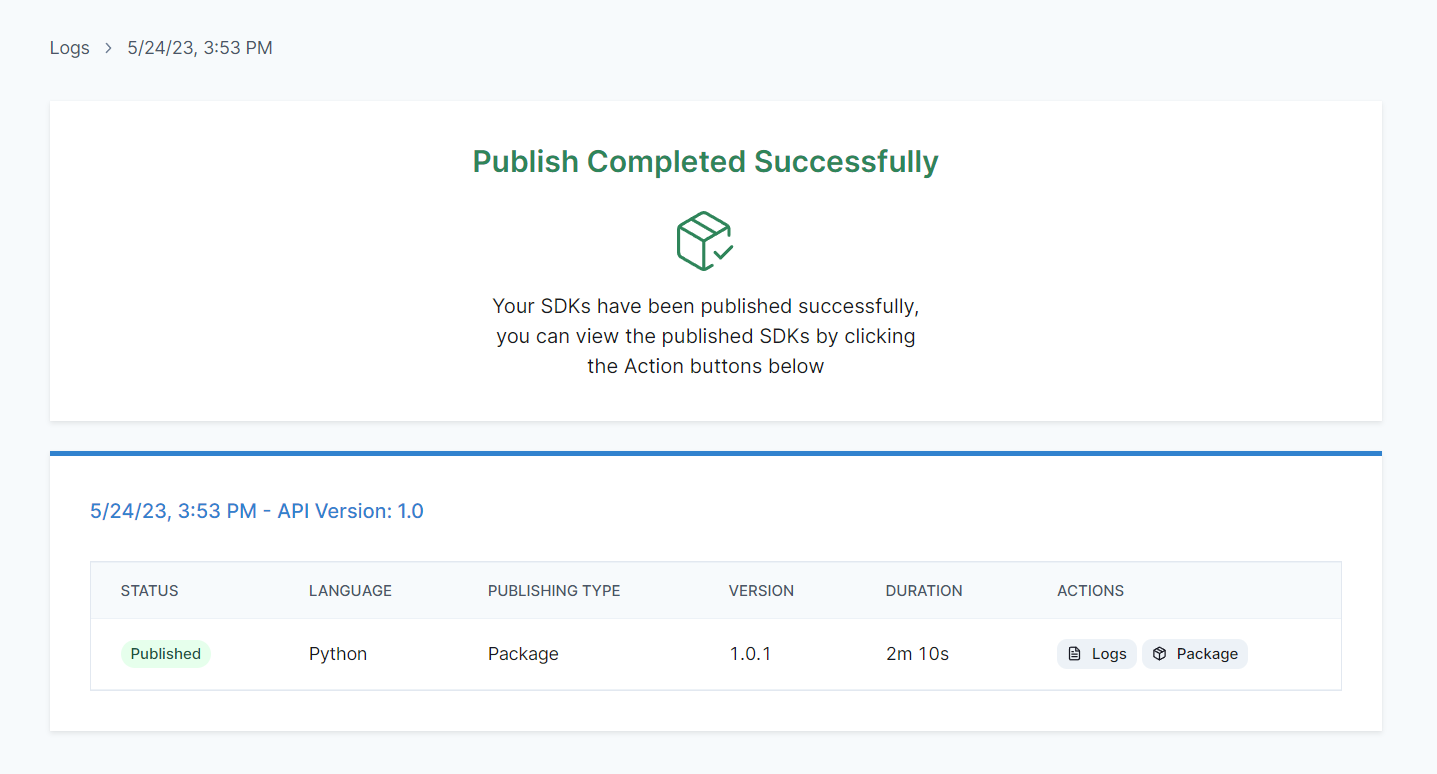
If publishing succeeds, the Actions column links you to the result: the Package button opens the published package on the relevant package registry, and the Source button opens the published SDK on GitHub. The Actions column also contains a Logs button, which lets you view the publishing logs listing the commands that were executed to publish your SDKs along with their output.