Custom Code Injection
APIMatic supports custom code injection, allowing you to add and maintain your own logic directly within generated SDK files. When you regenerate the SDK after updating your API specification, APIMatic automatically reapplies your saved customizations, ensuring they're not overwritten during regeneration.
This feature requires the APIMatic CLI. For installation instructions, see Installing APIMatic CLI.
Workflow
Step 1: Generate SDK with change tracking enabled
apimatic sdk generate --language=typescript --track-changes
This creates the generated SDK and initializes the sdk-source-tree folder in the input directory. For TypeScript, the folder contains a .typescript file that stores the SDK source tree and is used in future regenerations to track and reapply your customizations.

Step 2: Add your customizations
Add your custom logic to the generated SDK files where needed. This is where you personalize the SDK to fit your specific requirements, whether that's adding new files, extending existing ones, or including additional dependencies. See When to customize your SDK with this workflow for details.
Step 3: Save your customizations
apimatic sdk save-changes --language=typescript
This records your customizations so they can be applied again in future regenerations.
Step 4: Regenerate SDK with customizations
apimatic sdk generate --language=typescript
During regeneration, APIMatic reapplies your saved customizations from the sdk-source-tree to the newly generated SDK.
When to customize your SDK with this workflow
Custom code injection is ideal for adding logic that falls outside the scope of standard SDK generation. Some common use cases include:
- Introducing new utility files or custom flows.
- Adding a custom authentication provider.
- Modifying
package.jsonto include additional dependencies. - Extending generated files with custom logic or behavior. For example, API lifecycle hooks.
- Injecting business logic or helper methods into generated models.
- Adding custom signature verifier to webhook manager.
- Adding unit tests to validate API calls.
- Adding new GitHub workflows.
- Integrating with internal systems or third-party libraries.
For a complete example with the customizations applied, see Sample SDK Customizations with CLI Integration.
For simpler customizations, consider updating your OpenAPI specification directly or using the features APIMatic offers:
Handle Merge Conflicts
Sometimes the auto-generated SDK code can conflict with the customizations you've added. For example, suppose you update the introduction section in the generated README.md and later update the API description in your API specification. When the SDK is regenerated, both sets of changes affect the same section of README.md and result in a conflict.
To reduce the chance of conflicts, avoid editing generated files directly. Instead, create separate files for your customizations and import or extend the generated code from there. This keeps your customizations safe, as APIMatic only overwrites the files it originally generated.
Resolving Conflicts
When you regenerate the SDK, the APIMatic CLI has special handling to guide you through the resolution. First, it detects the conflict and reports it in the output:
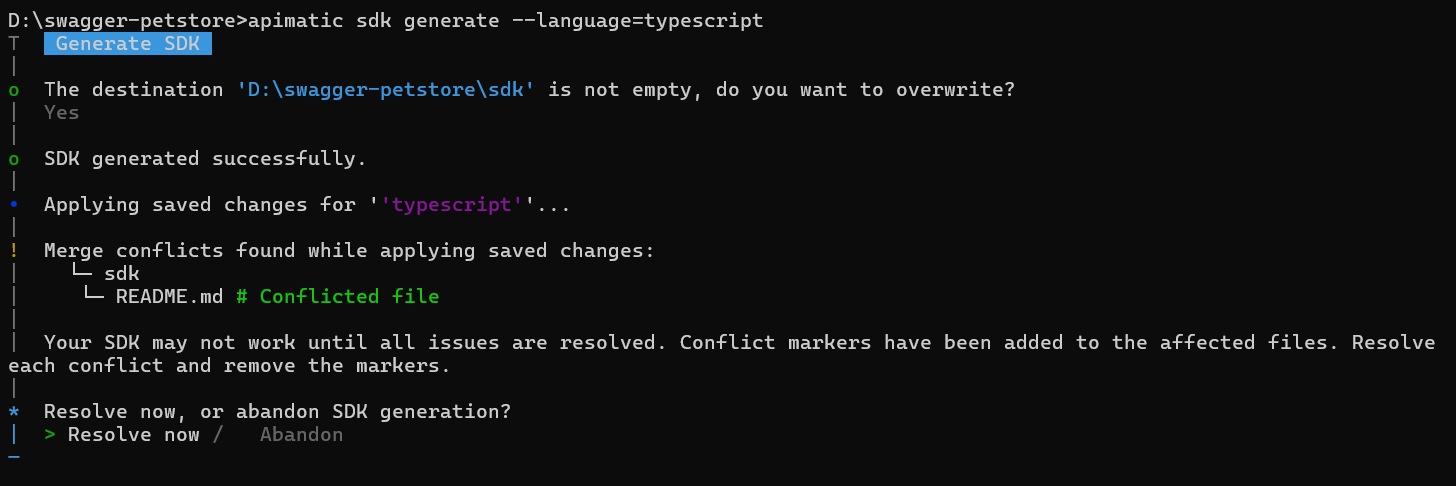
The CLI then prompts to either resolve the conflicts or abandon SDK generation. If you choose to resolve, it opens the conflicted files directly in your editor, showing the conflict markers. You can then resolve the conflicts by choosing to keep your customizations, accept the new generated code, or merge both together.
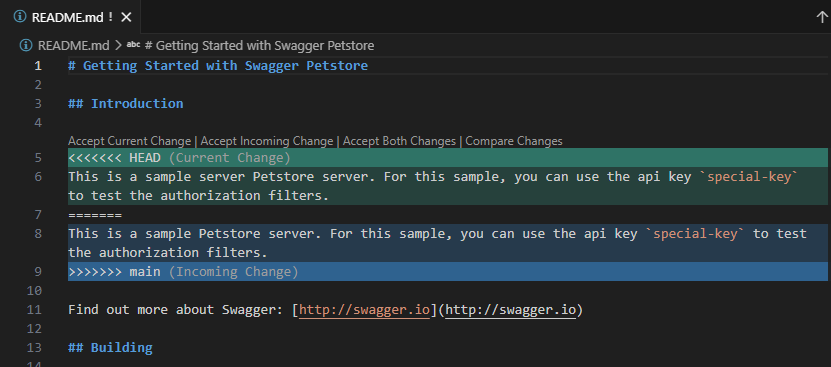
Once you have resolved all conflicts, the SDK is regenerated with your resolved changes integrated. The APIMatic CLI saves the resolution, so the same conflict won't occur in future regenerations.
Conflicts in CI/CD Pipelines
The conflict resolution flow is interactive and requires a terminal. If a conflict is detected during SDK generation in a CI/CD pipeline, the command fails with a non-zero exit code and no conflicts are resolved automatically.
To fix this, run the apimatic sdk generate command locally in your terminal, resolve the conflicts interactively, and then use the updated build in your CI. Subsequent pipeline runs will use the saved resolution and won't encounter the same conflict again.
Revert Customizations
If you need to undo your saved customizations, you have several options depending on whether you want to preview, partially revert, or fully remove them.
Previewing the SDK Without Customizations
To see what the SDK looks like without your saved customizations applied, use the --skip-changes flag:
apimatic sdk generate --language=typescript --skip-changes
This generates the SDK without reapplying any saved customizations. Your saved customizations aren't modified and will still be applied in future regenerations unless you remove them.
Removing All Customizations
To permanently remove all saved customizations for a specific language, delete the corresponding language file (for example .typescript) from the sdk-source-tree folder in your input directory. The next time you run sdk generate for that language, no customizations will be applied, and change tracking will need to be re-initialized with --track-changes.
Reverting a Specific Customization
To revert a particular customization rather than removing all of them, manually undo the change in the generated SDK files and then save the updated state using:
apimatic sdk save-changes --language=typescript
This overwrites the previously saved customization with the current state of the SDK, so the reverted change will no longer be reapplied in future regenerations.
Sample SDK Customizations with CLI Integration
The following sample repositories demonstrate a complete end-to-end workflow for building, customizing, and publishing a TypeScript SDK using the APIMatic CLI.
The sample-build-with-sdk-source-tree repository contains the API specification and SDK customizations for a TypeScript SDK. It also includes a GitHub Actions workflow that publishes the updated SDK to the sample-customized-typescript-sdk repository using the APIMatic CLI.
The sample-customized-typescript-sdk repository contains the generated TypeScript SDK with all customizations applied. It includes a GitHub Actions workflow that triggers when a customization is pushed to main, executes the sdk save-changes command to capture the new customizations, and pushes the updated source tree back to the build repository. You can view all the applied customizations in the closed pull requests.